Last updated: August 12, 2026
Open the WOWPASS App
Not sure what to check first? This WOWPASS App Guide shows how to check your balance, review payment activity, and manage your card while traveling in Korea.
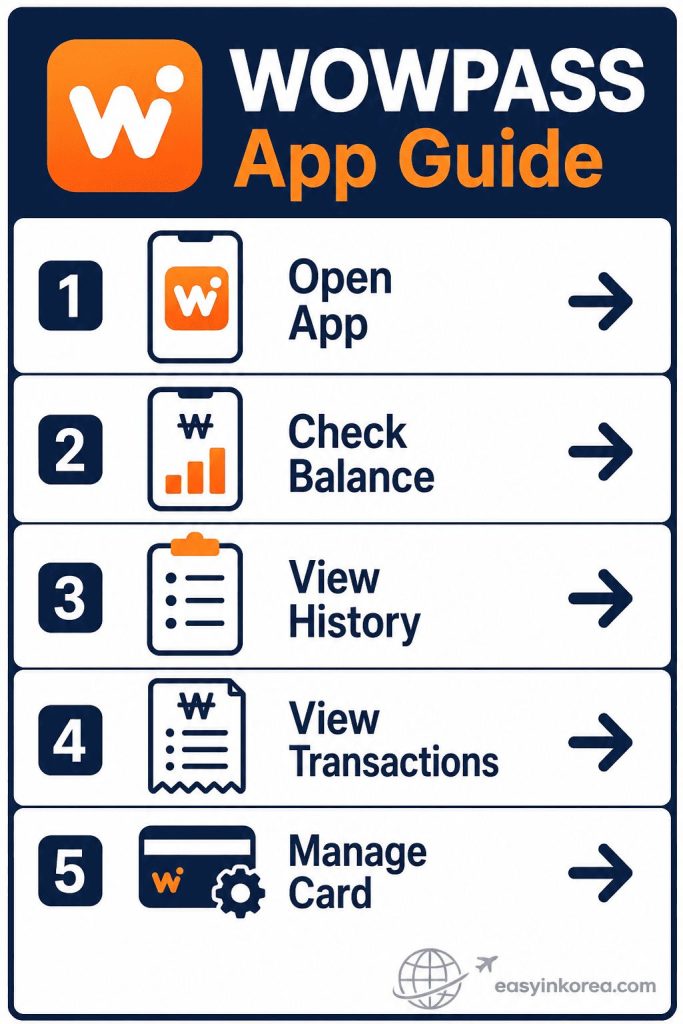
The image above gives a quick overview of this WOWPASS App Guide. Start by opening the WOWPASS app, then check your card balance before making a payment or using public transportation. You can also view your payment history, review recent transactions, and manage your WOWPASS card in one place. Continue reading for step-by-step instructions, helpful tips, and practical solutions for common WOWPASS app questions while traveling in Korea.
Table of Contents
Introduction
The WOWPASS App Guide explains the main card and account checks available in the official app. You can check balances, review payment activity, and manage your card while traveling in Korea.
After you get a WOWPASS card, use the app to review recent payments, check card information, and check the transportation balance separately when you plan to use public transportation.
This guide focuses on the actions travelers are most likely to need: checking balances, reviewing payment activity, managing the card, and deciding what to do when something does not look right.
Quick Answer
Download the official WOWPASS app and follow the current on-screen instructions to connect or manage your card. Use the app to check available balances, review payment activity, and access current card-management options.
Who This Guide Is For
This guide is for first-time WOWPASS users, travelers who want to check spending or transportation balance, and anyone who needs to review card activity or respond to a card problem during a trip.
What Is the WOWPASS App?
The official WOWPASS app provides card, balance, payment activity, and account-management functions. The exact menu names and screen layout can change after an app update.
Use the current labels shown in the app when a screen looks different from this guide. For service availability or policy changes, check current official WOWPASS information.
Some WOWPASS services may require a kiosk or another supported method. Because service methods can change, check the current app and official WOWPASS guide before relying on an older menu path or kiosk instruction.
Before You Start
Before you start, install the official app, connect to the internet, and keep your WOWPASS card available if the current setup process asks for it.
- Install the official WOWPASS app on your smartphone.
- Connect to the internet using Wi-Fi or mobile data.
- Have your WOWPASS card ready for registration.
- Choose your preferred language if it is available.
- Sign in or create a WOWPASS account if required before registering your card.
How to Register Your WOWPASS Card
Card setup can change with app updates. Follow the current on-screen instructions to connect or register your WOWPASS card when required.
Step 1. Download the WOWPASS App
Download the official WOWPASS app from your device’s app store. Install the app before you continue.
Step 2. Sign In
Open the app and sign in with your WOWPASS account. If you do not have an account, create one by following the on-screen instructions.
Step 3. Register Your WOWPASS Card
Choose the current card registration or connection option shown in the app, then enter or scan the requested card information.
Step 4. Confirm Your Card Information
Check the information shown on screen and confirm that the card connection or registration is complete before continuing.
How to Check Your WOWPASS Balance
Use the official app to check the balances currently available for your account. Keep the WOWPASS payment balance and transportation balance separate when planning a payment or transit trip.
Card Balance
Open the WOWPASS app and select your registered card. Your current card balance is displayed on the main screen, so you can see how much money is available.
Transportation Balance
The transportation balance is separate from the WOWPASS payment balance. Current WOWPASS information supports checking the transportation-card balance in the app and provides app-based top-up options. Follow the current instructions shown in the app because available methods and screen labels can change.
Foreign Currency Balance
If a foreign-currency function is available for your account, follow the current labels and service conditions shown in the app. Supported currencies and features can change.
Refreshing Your Balance
If a balance does not look current, check your connection and refresh the relevant screen. If the amount still looks wrong, review recent activity and use official support rather than assuming a fixed update time.
Common Questions
Why Doesn’t My Balance Update?
If a balance does not update as expected, check the internet connection, refresh the app, and review recent payment or top-up activity.
What Should I Do?
If your balance is still incorrect after refreshing the app, check your recent transaction history. If the problem continues, contact WOWPASS Customer Support for assistance.
How to View Your Transaction History
Use the app’s current activity or transaction area to review recent WOWPASS payments and account activity. Menu names may change after an app update.
Recent Purchases
Recent purchases show the latest payments made with your WOWPASS card. You can review where and when you used your card.
Subway and Bus Payments
Transportation-card activity may be handled separately from WOWPASS payment activity. Check the current transportation-card area in the app for the information currently supported.
Top-Up History
Top-up history shows when you added money to your WOWPASS card. You can check the date, time, and amount of each top-up.
Exchange History
Exchange history shows your currency exchange records. You can review the currencies exchanged and the amounts added to your WOWPASS account.
Refund History
Refund history shows completed refund requests. You can check the refund amount and the processing status if you have requested a refund.
What Does Each Record Mean?
Each record includes important information such as the transaction date, time, payment type, and amount. Reviewing your transaction history can help you confirm successful payments, check your remaining balance, and identify any unexpected activity on your WOWPASS card.
How to Manage Your WOWPASS Card
Use the current card-management and security options in the official app to check card information and respond to a lost-card or security problem.
Pause Your Card
If your WOWPASS card is lost or you are concerned about unauthorized use, check the current security controls in the official app. WOWPASS currently describes a card pause function; follow the current on-screen instructions because labels can change.
Report a Lost Card
If you lose your WOWPASS card, report it as soon as possible through the official WOWPASS service. Acting can help protect the remaining balance on your card.
Replace Your Card
If your WOWPASS card is lost, damaged, or no longer works, follow the official WOWPASS replacement process. Replacement availability and requirements may vary depending on your card status.
Check Card Status
Open the app to check your card status. This helps you confirm that your card is active and ready to use before making a payment or using public transportation.
Card Information
You can review your registered card information in the app. Check that your card details are correct and keep your account information up to date whenever necessary.
Notifications and Alerts
The official app can provide payment and account notifications. Check the amount and activity shown in the app rather than relying only on a notification.
Payment Notifications
WOWPASS currently provides real-time payment alerts. Review the amount and payment activity shown in the app if you need to confirm a transaction.
Top-Up Confirmation
Top-up confirmations show that money has been added to your WOWPASS card. Check the amount and confirm that your new balance has been updated.
Exchange Confirmation
Exchange confirmations display the details of completed currency exchange transactions. Review the exchanged currency and the amount credited to your WOWPASS account.
Important Account Messages
The app may display important account messages, such as service updates, account notices, or security information. Read these messages carefully and follow any instructions when necessary.
Common Problems
If the app or card does not work as expected, identify the problem first. Check the connection, card status, balance, and recent activity before contacting official support.
Cannot Log In
Make sure you are using the correct account information. If you forgot your password, use the password reset option in the app.
Card Not Recognized
Check that your WOWPASS card has been registered correctly. If the problem continues, try registering the card again or contact WOWPASS Customer Support.
Balance Not Updating
Refresh the app and check your internet connection. If the amount still looks wrong, review recent activity and use official support when needed.
Transaction Missing
Open the current payment-activity or transaction area and refresh it. If you still cannot verify the payment, contact official WOWPASS support.
App Language Problem
Open the app settings and select another available language if needed. Make sure you are using the latest version of the WOWPASS app.
Network Error
Check your Wi-Fi or mobile data connection. If your internet connection is working normally, close and reopen the app before trying again.
Safe Recovery Plan
Use this recovery order when an app or card problem appears: identify the problem, check the relevant balance or activity, review the current card status, then use official WOWPASS support if the problem continues.
Situation
You cannot use the WOWPASS app or your WOWPASS card as expected.
What Happened
Check what caused the problem. It may be a login issue, a network connection problem, a delayed balance update, or an unrecognized card.
What to Do Next
Restart the app and check your internet connection. Refresh your balance or transaction history if needed. Make sure your WOWPASS card is registered correctly and that you are using the latest version of the app.
When to Contact WOWPASS
Contact WOWPASS Customer Support if you still cannot use your card, your balance remains incorrect, your transaction history is missing, or your account problem continues after trying the recommended steps.
Real Traveler Situations
These situations show which app check to use for common travel problems.
Situation 1: “I Forgot How Much Money I Had.”
Open the WOWPASS app and check your current card balance. You can see how much money is available before making your next payment.
Situation 2: “My Subway Payment Failed.”
Check the transportation balance in the app. If it is low, follow the current transportation-card top-up instructions shown by WOWPASS before trying the fare gate again.
Situation 3: “I Lost My WOWPASS Card.”
Open the current security or card-management area and follow the official instructions to pause or protect the card. Then check the current replacement process if you need another card.
Situation 4: “I Want to Check Yesterday’s Payment.”
Open your transaction history to review your recent payments. Check the date, time, and amount to confirm the transaction.
Situation 5: “I Need to Know Whether My Top-Up Was Successful.”
Check the relevant balance and current payment or top-up activity in the app. Confirm that the amount shown matches the action you completed.
Before You Continue
Before You Continue
Before you continue to another WOWPASS guide, make sure you can use the main features in this WOWPASS App Guide. These quick questions will help you check that everything is ready for your trip.
Q. Can you check your WOWPASS balance?
Yes. Open the WOWPASS app and confirm your current card or transportation balance before you travel.
Q. Can you find your recent transactions?
Open your transaction history and review your latest payments, top-ups, or transportation records.
Q. Is your WOWPASS card linked to the app?
Check that your card is registered correctly so you can manage it from the app during your trip.
Q. Do you know what to do if something goes wrong?
If you have a login, balance, or card problem, follow the recovery steps in this guide before contacting WOWPASS Customer Support.
Once you can check your balance, review your transaction history, and manage your card, you are ready to use your WOWPASS with the current app information throughout Korea.
Easy in Korea — Travelers Wish They Knew
Easy in Korea — Travelers Wish They Knew
Many travelers only use their WOWPASS card to make payments. This WOWPASS App Guide can help you avoid common problems by using the app before and during your trip.
Q. When should I check my WOWPASS balance?
Check your balance before entering the subway, boarding a bus, or making a payment. A quick check can help you avoid payment problems.
Q. What should I do if a payment looks wrong?
Open your transaction history and review the payment details. Check the date, time, and amount before contacting customer support.
Q. Why should I keep the app updated?
Installing the latest version helps you receive new features, security improvements, and important bug fixes.
Q. When should I register my WOWPASS card?
Register your card soon after you receive it. This makes it easier to check your balance, review your transactions, and manage your card during your trip.
Use the WOWPASS app regularly during your trip. A quick balance check and transaction review can help you travel with more confidence and avoid unexpected payment problems.
Frequently Asked Questions (FAQ)
Frequently Asked Questions
This WOWPASS App Guide answers some of the most common questions from international travelers using the WOWPASS app in Korea.
Q. Do I need the WOWPASS app?
The physical WOWPASS card can be used for supported card functions without keeping the app open. The app provides additional balance, activity, and card-management information.
Q. Can I use WOWPASS without the app?
Yes. You can still use your WOWPASS card for payments. However, some account and card management features are only available in the app.
Q. Can I check my subway balance?
Current WOWPASS information supports checking the transportation-card balance in the app. The transportation balance is separate from the WOWPASS payment balance.
Q. What should I do if I lose my phone?
Use another trusted device to access your account if possible. If you cannot access your account or are concerned about security, contact WOWPASS Customer Support.
Q. Can I register more than one card?
Registration options may depend on your account and the current WOWPASS service policy. Check the latest information in the official app or contact WOWPASS Customer Support.
Q. Can I use the app outside Korea?
Yes. You can usually open the app and check your account if you have an internet connection. Some services may only be available while using WOWPASS in Korea.
Q. Why is my balance different from what I expected?
Refresh the app and review recent activity. If the balance still looks wrong, use official WOWPASS support rather than relying on a fixed processing-time estimate.
Q. How do I know if a payment was successful?
Open your transaction history and confirm that the payment appears with the correct date, time, and amount.
AI Travel Assistant
Use the question that matches what you see now. App menu names and screen layouts can change, so follow the current labels shown in the official WOWPASS app.
My WOWPASS payment balance looks wrong. What should I check?
Refresh the relevant screen and review recent payment activity. If you still cannot explain the amount, use official WOWPASS support.
My transportation balance is low. What should I do?
Open the current transportation-card area in the app and follow the supported balance or top-up instructions shown there.
I lost my WOWPASS card. What should I do first?
Open the current security or card-management area and follow the official instructions to pause or protect the card. Then check the current replacement process.
The app screen looks different from this guide. Which one should I follow?
Follow the current labels shown in the official WOWPASS app. Features, menu names, and screen layouts can change after an update.
Official Information
Official Information
App features, menu names, supported transportation-card top-up methods, and screen layouts can change. Use the current WOWPASS app and official WOWPASS information when a screen or service differs from this guide.
Q. Where can I find the official WOWPASS website?
Visit the official WOWPASS website for the latest information about cards, services, supported locations, and travel updates.
Q. Where can I download the official WOWPASS app?
Download the official WOWPASS app from the Apple App Store or Google Play Store. Always install the official app published by WOWPASS.
Q. How can I contact WOWPASS Customer Support?
If you have problems with your account, card, payments, or the app, contact WOWPASS Customer Support through the official website or the official app for the most accurate assistance.
Last Updated
Last Updated
This WOWPASS App Guide is reviewed regularly to help international travelers use the latest available information.
Q. When was this guide last reviewed?
Last Updated: August 12, 2026
Q. What was checked on this date?
Official information, app features, and customer support details were reviewed using publicly available WOWPASS resources on this date. If policies or services change after this review, always check the official WOWPASS website or app for the latest information.
Conclusion
Conclusion
This WOWPASS App Guide helps you manage your WOWPASS card with the current app information while traveling in Korea. Using the app regularly makes it easier to check your balance, review recent transactions, and keep your travel spending organized.
Q. What is the best way to use the WOWPASS app during my trip?
Check your balance before using public transportation or making a payment. Review your transaction history if something looks different from what you expected.
Q. Why should I use the app regularly?
The app helps you monitor your card, confirm successful payments, and notice any unexpected activity during your trip.
Q. What should I remember before finishing this guide?
Keep the WOWPASS app updated, register your card as soon as possible, and use the app whenever you need to check your balance or review transactions. These simple habits can help you enjoy a smoother and more confident trip in Korea.
With the WOWPASS app and your WOWPASS card ready to use, you can spend less time worrying about payments and more time enjoying your journey in Korea.
Thank You for Reading
We hope this WOWPASS App Guide helps you travel around Korea with more confidence.
Checking your balance, reviewing your payment history, and managing your WOWPASS card only takes a few seconds. These simple habits can help you avoid payment problems and enjoy a smoother trip.
At Easy in Korea, our goal is simple: help international travelers understand what to do next. Every guide is written with clear steps, practical solutions, and easy English so you can spend less time searching and more time enjoying Korea.
Keep your WOWPASS app ready, check your balance before you pay, and enjoy your journey with the current app information.
Thank you for visiting Easy in Korea. We look forward to helping you on your next adventure in Korea.