Last updated: August 12, 2026
Ready to pay at a store?
Check How to Pay with WOWPASS before you use the payment terminal.
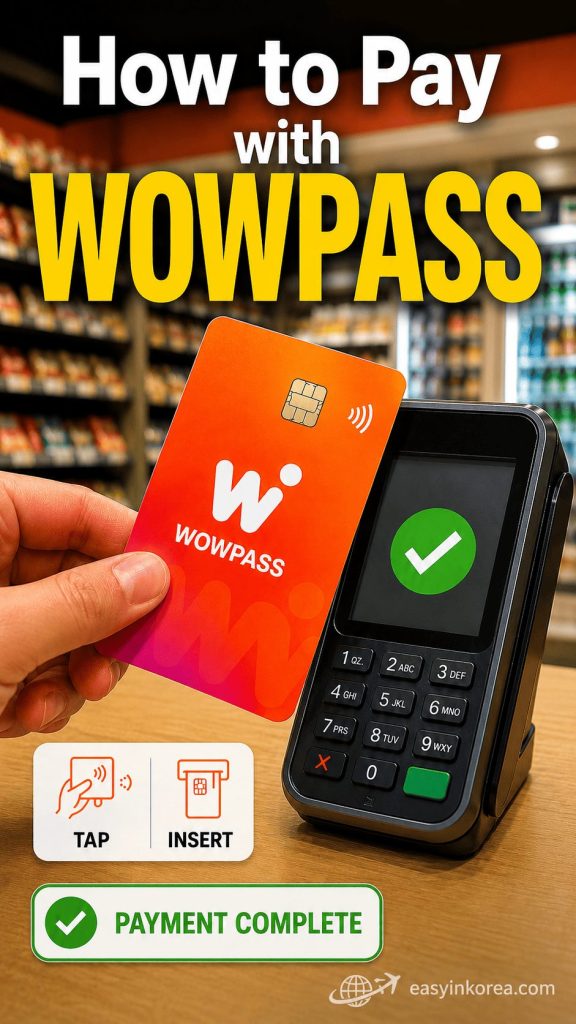
This image shows How to Pay with WOWPASS at a store in Korea.
First, check that your WOWPASS payment balance is enough.
Give the card to the store staff or use the payment terminal in front of you.
Follow the instruction shown on the terminal.
For a normal store payment, insert the card’s IC chip into the payment terminal.
Keep the card inserted until the terminal shows that the transaction is complete.
Do not remove the card too early.
Wait for the approval message or payment confirmation shown by the terminal.
Your payment is complete when the terminal confirms the transaction.
Payment terminals may look different at each store.
Ask the store staff for help if the terminal shows an error or the payment does not go through.
Found this image while searching for How to Pay with WOWPASS? Continue reading for the full store-payment steps, balance checks, transport-balance differences, and recovery actions if a payment is declined.
Introduction
If you are wondering how to pay with WOWPASS in Korea, this guide explains the store-payment process, the balance you need, and what to check if a transaction does not go through.
You can use WOWPASS for eligible in-person purchases during your trip. For a normal store payment, insert the card’s IC chip into the payment terminal and follow the instructions shown on the screen.
In this guide, you will learn how to pay with WOWPASS step by step, where card payment may be available, how the payment balance differs from the transport balance, and what to do if a payment is declined.
Table of Contents
Can You Pay with WOWPASS Everywhere?
WOWPASS can be used for eligible card payments at many shops, restaurants, cafés, and other merchants in Korea. Merchant acceptance can vary, so check the payment terminal or ask the cashier when needed.
For a normal in-person store payment, insert the WOWPASS card’s IC chip into the merchant’s card reader and follow the terminal instructions.
You can usually pay with WOWPASS at:
- Convenience stores
- Cafés and coffee shops
- Restaurants
- Supermarkets
- Department stores
- Cosmetics stores
- Clothing shops
- Tourist attractions
- Many taxis
However, WOWPASS may not work everywhere. Some small local shops, traditional markets, or cash-only businesses may not accept card payments. In these places, you may need to pay with cash instead.
If you are unsure whether the merchant can accept the card, ask the cashier before payment. Merchant acceptance and terminal behavior can vary.
Before You Pay
Before you pay, check your card status and the balance you need for the purchase.
First, check your payment balance in the WOWPASS app or at a WOWPASS kiosk. Make sure you have enough money for your purchase.
Next, remember that your payment balance and transport balance are different. The payment balance is used for shopping, restaurants, cafés, and other card payments. The transport balance is only used for buses, subways, and other public transportation. Money in your transport balance cannot be used for shopping.
Finally, make sure your WOWPASS card is activated and ready to use. If you have just received your card, complete the activation process before making your first payment.
Check the payment balance and card status before checkout, then follow the instructions shown by the merchant’s payment terminal.
How to Pay with WOWPASS
To understand how to pay with WOWPASS at a store, start with the payment balance and follow these steps.
Step 1. Tell the Cashier You Will Pay by Card
Take your WOWPASS card out before you reach the payment terminal. If needed, tell the cashier that you would like to pay by card. The cashier will prepare the payment terminal for you.
Step 2. Insert Your WOWPASS Card
When the payment terminal is ready, insert the WOWPASS card’s IC chip into the card reader. Follow the instructions shown on the terminal.
Step 3. Wait for Payment Approval
Leave the card in the terminal until the transaction is complete. Remove it only after the terminal or cashier confirms the payment.
Step 4. Collect Your Receipt
After the payment is approved, take your receipt if you need one. Your purchase is complete, and you are ready to continue your trip.
The same basic check applies at many merchants: use the payment balance, insert the IC chip, and wait for approval before removing the card.
Card Payment at Stores
For normal store payments with WOWPASS, use the card’s IC chip. Insert the card into the merchant’s payment terminal and follow the instructions shown on the screen.
Keep the card inserted while the terminal processes the transaction. Remove it only after you see an approval message or the cashier tells you the payment is complete.
Payment terminals can look different from one merchant to another. If the screen shows a different instruction, follow the current terminal or cashier guidance.
If the transaction is not approved, check your payment balance and card status before trying again. Keep another payment method available in case the problem continues.
For transportation, the rule is different: use the separate Tmoney transportation function and tap the card when entering or leaving the subway or bus system as required.
Paying at Self-Checkout Kiosks
You may also use a self-checkout kiosk when the merchant accepts card payment. Screen options and payment terminals can vary by store.
You can find self-checkout kiosks in many convenience stores, supermarkets, and fast food restaurants. After selecting your items, choose Card as the payment method on the screen.
When the payment terminal is ready, insert the WOWPASS card’s IC chip and wait for the transaction result. Follow any current instructions shown on the screen.
If you are unsure what to do, many kiosks offer English and other language options. You can also ask a staff member for help before completing your payment.
If the kiosk does not accept the card or the payment is declined, ask a staff member or use another payment method.
Paying at Restaurants
Restaurant payment locations vary. Some restaurants use a counter near the entrance, while others may bring a payment terminal to the table.
In many restaurants, you order your food, enjoy your meal, and then pay before leaving. When you are ready to pay, go to the cashier with your WOWPASS card. The staff will prepare the payment terminal for you.
If a payment terminal is brought to your table, insert the WOWPASS card’s IC chip and follow the terminal or staff instructions.
If you are not sure where to pay, look for the cashier near the entrance or ask a staff member. They will show you where to complete your payment.
If you are unsure where to pay, ask a staff member before leaving the restaurant.
Paying at Convenience Stores
Convenience stores commonly accept card payments, but individual terminal or merchant conditions can vary.
Take your items to the cashier and wait until the total amount appears. Insert the WOWPASS card’s IC chip into the payment terminal and wait for approval.
If the store has a self-checkout kiosk, choose Card when available, then insert the WOWPASS card’s IC chip and follow the screen.
If your payment is declined, first check your payment balance in the WOWPASS app. In most cases, adding more money to your payment balance will solve the problem.
If payment does not go through, check the payment balance, card status, and terminal instructions before retrying.
Paying for Shopping
You may be able to use WOWPASS at many retail stores in Korea that accept eligible card payments. Merchant acceptance can vary.
After the cashier enters the total amount, insert the WOWPASS card’s IC chip into the payment terminal and wait for the transaction result.
Before a larger purchase, check the payment balance and keep another payment method available in case the transaction is not approved.
Before making a large purchase, check your payment balance to make sure you have enough funds. This can help you avoid payment delays at the checkout.
Follow the merchant’s current payment instructions and confirm that the transaction is approved before leaving the checkout.
Can You Use WOWPASS for Transportation?
WOWPASS payment and transportation use different balances. Check which balance you need before you shop or take public transportation.
The payment balance is used for shopping, restaurants, cafés, convenience stores, and other places that accept card payments.
The transport balance is only used for public transportation, such as subways, buses, and some taxis that accept transportation card payments.
These two balances are completely separate. Money in your transport balance cannot be used for shopping, and money in your payment balance cannot be used for subway or bus fares.
Before you travel or shop, check that you have enough money in the correct balance. If you are going shopping, make sure your payment balance is sufficient. If you plan to use public transportation, make sure your transport balance has enough funds.
For store payments, use the WOWPASS payment balance and insert the IC chip. For subway and bus travel, use the separate Tmoney transportation function and tap the card as required.
What If Payment Is Declined?
A payment can be declined for several reasons. Check the payment balance, card status, and merchant terminal before deciding what to do next.
Insufficient Payment Balance
The most common reason is that your payment balance is too low. Open the WOWPASS app or use a WOWPASS kiosk to check your balance. Add more money if needed, then try your payment again.
Wrong Balance
Remember that the payment balance and transport balance are separate. Money in your transport balance cannot be used for shopping. Make sure you have enough money in your payment balance before trying again.
Card Problem
If the card is not working, check the chip and insert the card again as shown by the terminal. If the problem continues, check the card status in the WOWPASS app or contact official WOWPASS support.
Store Network Issue
Sometimes the problem is the store’s payment terminal or network. Ask the cashier whether the transaction can be tried again, or use another payment method if needed.
What to Check Next
If your payment is declined, stay calm and check one thing at a time.
- Check your payment balance.
- Confirm you are using the payment balance, not the transport balance.
- Insert the card’s IC chip again and follow the terminal instructions.
- Ask the cashier to try the payment one more time.
- If the problem continues, use another payment method and contact WOWPASS customer support later.
Check one item at a time. If the problem continues, use another payment method and contact official WOWPASS support when needed.
Real Traveler Situations
These examples show how the same store-payment rule applies in common travel situations.
☕ Buying Coffee
You order a coffee at a café. When the payment terminal is ready, insert the WOWPASS card’s IC chip and wait for approval.
💄 Shopping at Olive Young
You choose your cosmetics and take them to the cashier. Check that you have enough payment balance, then insert the WOWPASS card’s IC chip and wait for approval.
🛒 Paying at CU
You buy snacks and bottled water at CU. When the terminal is ready, insert the WOWPASS card’s IC chip and wait for the result.
🛍 Shopping at Daiso
You buy travel items and souvenirs at Daiso. Insert the WOWPASS card’s IC chip and wait for the approval message before removing the card.
🍜 Paying at a Restaurant
After your meal, go to the cashier if the restaurant uses counter payment. Insert the WOWPASS card’s IC chip and wait until the payment is approved before leaving.
At each merchant, confirm the payment balance, insert the IC chip, and wait for approval before leaving the checkout.
Before You Continue
Check These Before You Pay
Before you pay, check these points. They can help you identify the next action if the transaction does not go through.
Do you have enough payment balance?
Check your payment balance in the WOWPASS app before shopping, eating, or buying drinks.
Are you checking the correct balance?
Shopping uses the payment balance. Subways and buses use the separate transport balance.
Is your card ready to use?
Make sure your WOWPASS card is activated and not locked or suspended in the app.
How should you pay at a normal store terminal?
Insert the card’s IC chip into the payment terminal and wait for approval.
Should you carry another payment method?
Yes. Keep some cash or another card in case the store terminal or payment network is temporarily unavailable.
Check one thing at a time. Use another payment method if the transaction still does not go through.
Easy in Korea — Travelers Wish They Knew…
WOWPASS has two separate balances. Use the payment balance for shopping and the transport balance for buses and subways.
For subway and bus travel, use the separate Tmoney transportation function and tap the card as required.
A quick balance check can prevent most payment problems at the checkout.
WOWPASS works like a Visa prepaid card. If a store accepts Visa cards, you can usually pay with WOWPASS.
Use the payment balance for store purchases, insert the IC chip, and follow the current terminal instructions.
Frequently Asked Questions (FAQ)
These answers cover common WOWPASS payment questions during a trip to Korea.
Can I tap my WOWPASS card?
Tap your WOWPASS card when using the Tmoney transport function on a subway or bus. For normal store payments, insert the card’s IC chip into the payment terminal and wait for approval.
Can I pay at restaurants?
Yes. You can normally use WOWPASS at restaurants in Korea that accept local card payments. Take your card to the cashier or follow the restaurant’s payment instructions, then insert the IC chip into the card reader.
Why was my payment declined?
Your payment balance may be too low, your card may be paused, or the store terminal may have a temporary problem. Check your payment balance in the WOWPASS app, confirm that the card is active, and insert the card again. Use another payment method if the problem continues.
Can I use WOWPASS at convenience stores?
Yes. You can normally pay with WOWPASS at convenience stores such as CU, GS25, 7-Eleven, and emart24. Use the WOWPASS payment balance for normal purchases. The separate Tmoney balance may also be accepted for eligible Tmoney payments.
Do I need a PIN?
A PIN is not normally requested for a standard in-person WOWPASS purchase in Korea. Insert the card and follow the payment terminal or cashier instructions. Requirements may differ for a special terminal or transaction.
Can I use WOWPASS outside Korea?
No. WOWPASS is designed for payments at eligible offline merchants in South Korea. Keep another card or payment method ready when traveling outside Korea.
Easy in Korea Tip
Remember this distinction: insert the card’s IC chip for normal store payments, tap the Tmoney transportation function for subway and bus travel, and check the correct balance before you pay.
AI Travel Assistant (Q&A)
Use these questions when you need a quick next step. For card rules, merchant acceptance, fees, or service changes, confirm the latest official WOWPASS information.
Q. How do I pay with WOWPASS at a normal store?
Check the WOWPASS payment balance, insert the card’s IC chip into the payment terminal, and wait until the transaction is approved.
Q. What should I do if the payment is declined?
Check the payment balance and card status first. Insert the card again if appropriate, follow the terminal instructions, and use another payment method if the problem continues.
Q. Is store payment the same as subway or bus payment?
No. Store purchases use the WOWPASS payment balance and IC-chip insertion. Subway and bus travel use the separate Tmoney transportation function and a tap.
Q. What should I keep as a backup?
Keep another payment method available in case the merchant terminal, payment network, or WOWPASS card is temporarily unavailable.
Official Information
Use the official sources below to confirm the latest information about how to pay with WOWPASS, card use, supported stores, and payment-terminal instructions.
WOWPASS Official
Official card-use and payment guidance
What information can I check?
The official WOWPASS guide explains card payments, balance management, transportation use, kiosk services, and support options. It states that the WOWPASS payment balance can be used at offline merchants in Korea that accept local credit or debit card payments.
Visa Acceptance Information
Payment network and terminal guidance
What does the Visa information explain?
Visa explains how card acceptance symbols and contactless-payment symbols work. A contactless symbol on a payment terminal shows where an eligible contactless card or device can be tapped. Always follow the terminal instructions shown at the store.
Which source should I check first?
Check WOWPASS Official first for information about your WOWPASS card, balance, app, or payment problem. Check Visa information for general payment-network and contactless-symbol guidance.
Easy in Korea Reminder
Services, merchant acceptance, and payment procedures can change. When you need the latest answer about how to pay with WOWPASS, confirm it through the official WOWPASS guide or customer support.
Disclaimer
This guide explains how to pay with WOWPASS in simple steps for international travelers in Korea.
Is this an official WOWPASS website?
No. Easy in Korea is an independent travel information website. It is not operated by WOWPASS, Visa, Tmoney, a bank, or a payment company.
Can payment methods change?
Yes. Card acceptance, terminal instructions, fees, limits, supported services, and app features may change without notice.
Will WOWPASS work at every store?
Not always. Payment acceptance depends on the merchant, payment terminal, network status, card status, and available WOWPASS payment balance.
What should I do before paying?
Check your payment balance, confirm that your card is active, and follow the instructions shown by the cashier or payment terminal.
What if the information is different?
Follow the latest official WOWPASS app, website, customer support, merchant, and payment-terminal instructions. Official information should always take priority over this guide.
Important
Easy in Korea does not guarantee that every WOWPASS payment will be approved. Keep another card or some cash available in case your payment cannot be completed.
Easy in Korea Reminder
This guide is designed to help you understand how to pay with WOWPASS, but the final payment decision and transaction result depend on the official service provider and merchant.
Last Updated
This section shows when the information in this how to pay with WOWPASS guide was last reviewed.
When was this guide last updated?
This guide was last updated on August 12, 2026.
What information was reviewed?
The review covered WOWPASS store payments, payment and transport balances, card insertion, Tmoney tapping, declined payments, supported locations, and common traveler questions.
Was official information checked?
Yes. The guide was reviewed against available official WOWPASS information and general payment-network guidance.
Can this information change?
Yes. WOWPASS services, payment procedures, app features, merchant acceptance, limits, and support options may change after this review date.
What should I do before using WOWPASS?
Check the latest WOWPASS app, official website, payment terminal, or customer support instructions before making an important payment.
Easy in Korea Review Note
Easy in Korea reviews practical travel information to keep this how to pay with WOWPASS guide clear, useful, and easy to follow for international visitors.
Conclusion
For a normal store payment, check your WOWPASS payment balance, insert the card’s IC chip into the payment terminal, and wait until the transaction is approved before removing the card.
Transportation works differently. Use the separate Tmoney transportation function and tap the card for subway or bus travel as required. Merchant acceptance, card rules, and terminal behavior may change, so follow current official WOWPASS information and keep another payment method available.