SmartPass Not Working? Start with the Failed Step
SmartPass Not Working? First check where the registration process stopped. A passport scan, NFC reading, SmartPass ID, boarding pass, and app problem may need different checks.
SmartPass Not Working? Match what you see on your phone with the five problem points below before restarting the registration.
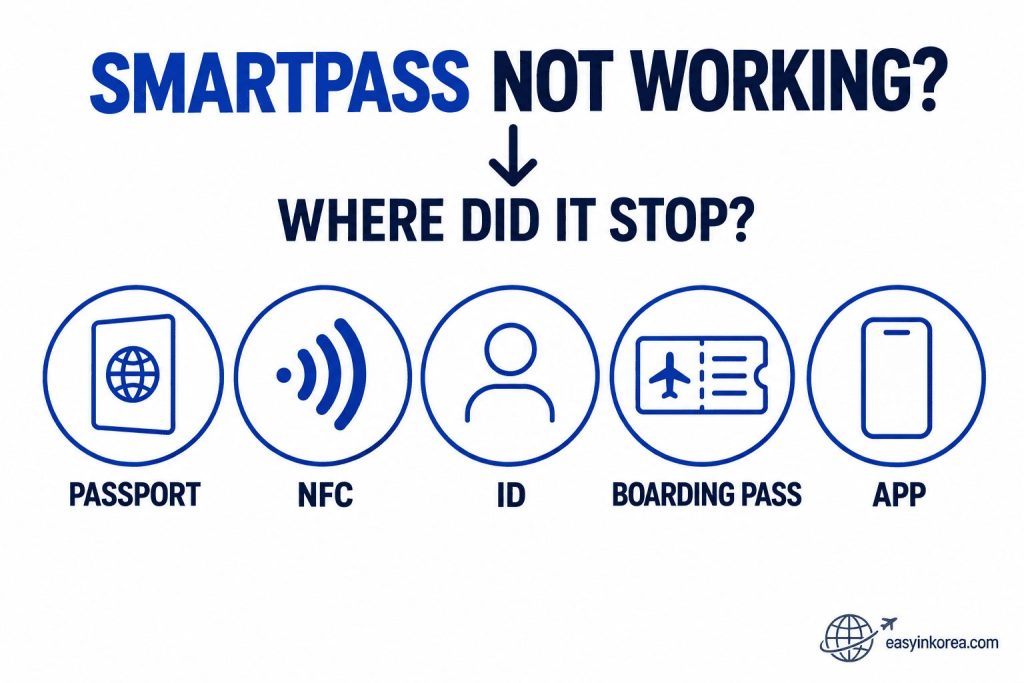
If SmartPass Not Working is the problem that brought you here, do not restart every registration step yet. First identify exactly where the process stopped.
A passport scan problem, NFC passport-chip problem, SmartPass ID problem, boarding-pass problem, and app problem can happen at different stages. A step that already worked usually does not need your attention first.
Start with the point that matches your screen:
Passport — The passport information will not scan or register.
NFC — The passport page was accepted, but the electronic chip will not read.
ID — Passport and NFC checks worked, but SmartPass ID or face registration does not finish.
Boarding Pass — Your SmartPass ID is ready, but the current flight or boarding pass is not.
App — The app stops, will not continue, or does not reach the expected next step.
Once you know where it stopped, continue to the matching troubleshooting section below. This keeps you from repeating passport or NFC steps that may already be complete.
Find the failed step first → check only that problem → try again → use the airport fallback if SmartPass still does not work.
Do not restart every SmartPass step immediately. First look at the screen and identify the point where the problem happened.
If the passport page was not accepted, start with the passport check. If the passport information was accepted but the chip cannot be read, move to the NFC section. If both steps worked, the problem may be with SmartPass ID, face registration, your boarding pass, or the app.
Use this troubleshooting order:
Passport → NFC → SmartPass ID → Boarding Pass → App → Airport Fallback
The goal is simple: return to the step that failed instead of repeating steps that already worked.
Quick Answer: What Should You Check First?
Match the problem on your screen with the step below before trying the full registration again.
Where did SmartPass stop? Find the box that matches your screen, then check only that step before starting the full registration again.
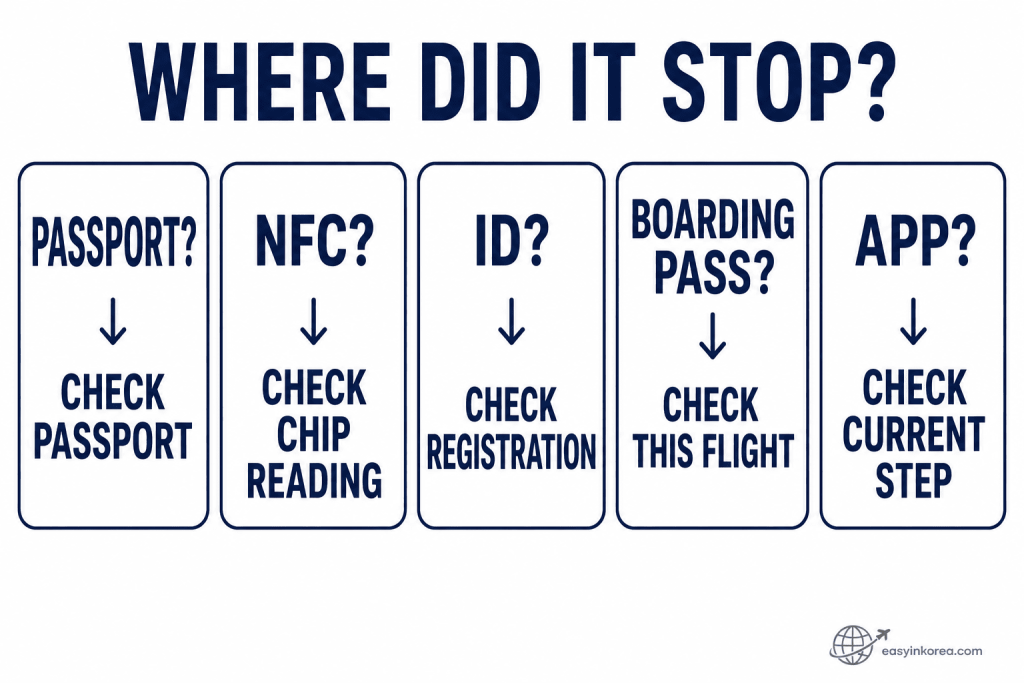
If SmartPass Not Working brought you here, start with the box that matches the last successful step on your phone. The point where the process stopped tells you what to check next.
Match your screen to the next check:
Passport? — Start here if SmartPass cannot read or accept your passport information.
NFC? — Use the NFC troubleshooting section if the passport was accepted but the electronic chip will not read.
ID? — Move to registration checks if the passport and NFC steps worked but SmartPass ID or face registration does not finish.
Boarding Pass? — Check the current flight if your SmartPass ID is ready but the boarding pass is not.
App? — Check the app and current phone permissions if no earlier registration step explains the problem.
Do not repeat a completed passport or NFC step just because a later step fails. Continue to the matching section below and troubleshoot the first incomplete step.
Found where it stopped? Continue below: identify the failed step → check that problem → try again → use the airport fallback if SmartPass still does not work.
When SmartPass is not working, the fastest way to troubleshoot it is to separate the problem by step.
| What You See | Check First | Next Step |
|---|---|---|
| Passport will not scan | Passport step | Follow the current scan instructions |
| Passport chip will not read | NFC step | Adjust the phone and passport position |
| ID registration stops | Current registration step | Continue from that step |
| Boarding pass will not register | Current flight | Check boarding-pass status |
| App will not continue | App and permissions | Check the app before restarting |
If one step is already complete, keep it complete and troubleshoot the next failed step.
Table of Contents
Know Which SmartPass Step Failed
SmartPass registration has several parts. Understanding the flow makes it easier to see which part needs attention.
See the full registration flow first. Find the last step that worked, then continue to the first step that did not finish.
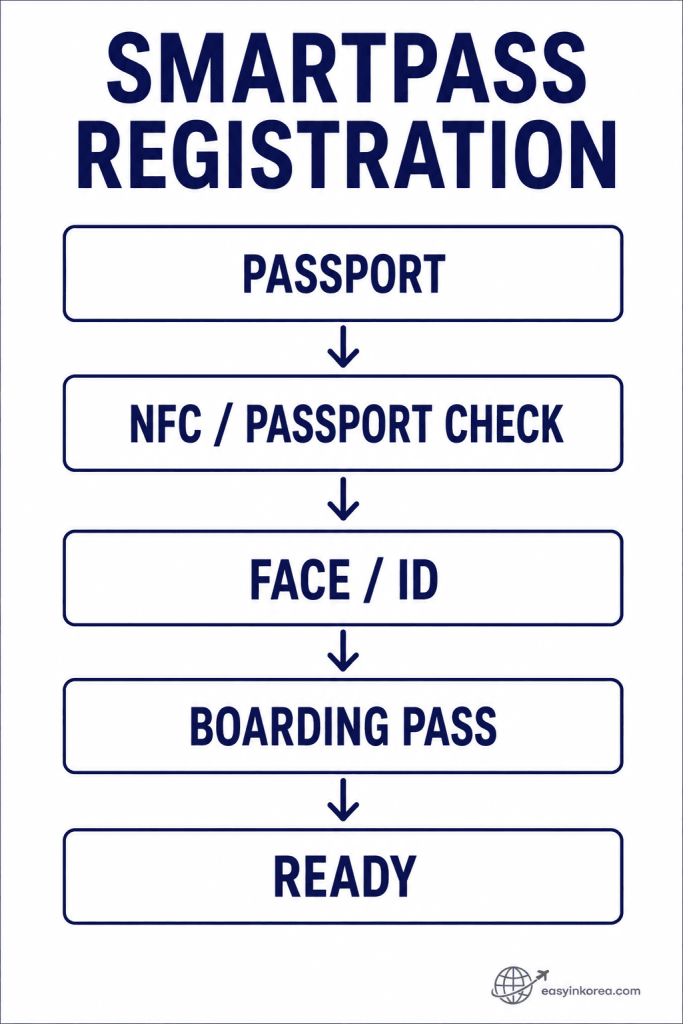
If SmartPass Not Working is your problem, use this flow to find the last step that completed successfully. The first incomplete step is usually the best place to continue troubleshooting.
Read the registration flow from top to bottom:
Passport — Start here if SmartPass cannot read or accept your passport information.
NFC / Passport Check — Move here if the passport page was accepted but the electronic passport chip still needs to be read.
Face / ID — Check this step if passport and NFC checks finished but SmartPass ID or face registration did not complete.
Boarding Pass — Check the current departure if your SmartPass ID is ready but the boarding-pass step is incomplete.
Ready — If registration appears complete but SmartPass still cannot be used, check the current airport lane, service point, or boarding process.
Do not return to the passport step just because a later step fails. A completed passport or NFC check may already be working correctly.
Found the first incomplete step? Continue below to the matching passport, NFC, ID, boarding-pass, or app troubleshooting section.
Incheon Airport SmartPass uses registered passport, facial information, and boarding-pass information for supported departure processes.
Your passport registration and your boarding pass are not the same step. This matters when SmartPass Not Working searches lead to several different problems that may look similar on the phone.
Current official points to remember
SmartPass facial information (ID) can currently be used for five years after registration.
If you renew your passport, the SmartPass ID must be registered again.
Your boarding pass must be registered for each departure.
These service rules can change. Check the current Incheon Airport SmartPass information before travel if your trip depends on a specific feature.
SmartPass Passport Scan Not Working
If SmartPass stops while reading your passport, solve the passport step before moving to NFC or face registration.
Passport scan stopped here? Check this step before moving to NFC, face registration, or boarding-pass troubleshooting.
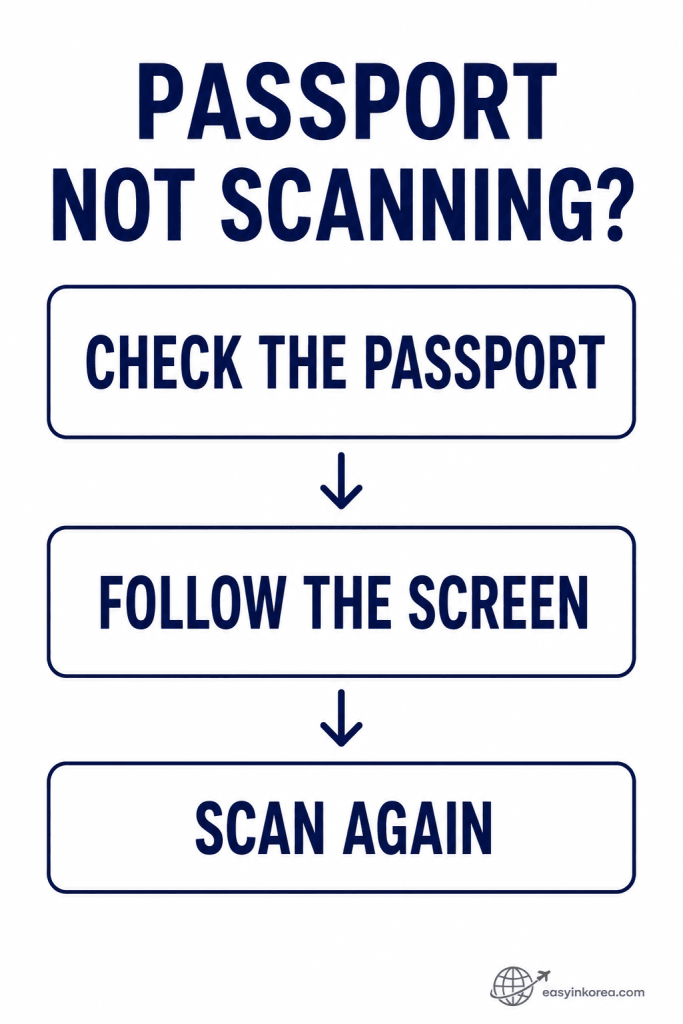
If SmartPass Not Working starts at the passport step, solve this part before checking NFC, SmartPass ID, or your boarding pass.
Look at the instruction currently shown in the SmartPass app. Keep the passport steady and follow the scan position shown on the screen instead of relying on an older screenshot or phone guide.
Check the passport step in this order:
1. Check the passport. Make sure you are using the passport required for SmartPass registration and that you are still on the passport-reading step.
2. Follow the current screen. Use the position and instructions shown by the SmartPass app.
3. Scan again. Keep the passport steady while the app tries to read the required information.
If the passport information is accepted but the electronic passport chip will not read, the passport-scan step may already be complete. Move to the NFC troubleshooting section instead of repeating the first scan.
Passport accepted but SmartPass still stops? Continue below to the NFC and passport-chip checks before restarting the full registration.
A passport scanning problem happens before SmartPass can move through the rest of the registration process.
Start by checking the instruction currently shown in the SmartPass app. Place the passport as directed and avoid moving it while the app is trying to read the required information.
Check before trying again:
1. Make sure you are still on the passport step.
2. Follow the current instructions shown in the app.
3. Keep the passport steady while it is being read.
4. Do not confuse the passport scan with the later NFC chip-reading step.
The official SmartPass app guidance states that only an electronic passport, or e-passport, can be registered through this process.
If the passport information has already been accepted but SmartPass still cannot read the passport chip, continue to the NFC sections below instead of repeating the first scan.
Passport Scanned, but the Chip Will Not Read
If the passport page was accepted but the chip will not read, the problem has moved from the passport scan to NFC.
A completed passport scan does not mean the electronic chip has also been read.
Passport information accepted
does not automatically mean
NFC chip reading complete.
Look at the current SmartPass screen. If it is asking you to read the passport chip, stop troubleshooting the camera or passport-page scan and focus on the NFC connection.
This distinction is especially useful when the app appears to accept the passport and then seems to stop during the next step.
SmartPass NFC Not Working
If SmartPass NFC is not working, keep the passport and phone in the reading position and troubleshoot the NFC step instead of starting from the beginning.
Passport accepted but NFC will not read? Stay on the chip-reading step and adjust the phone position before starting the registration again.
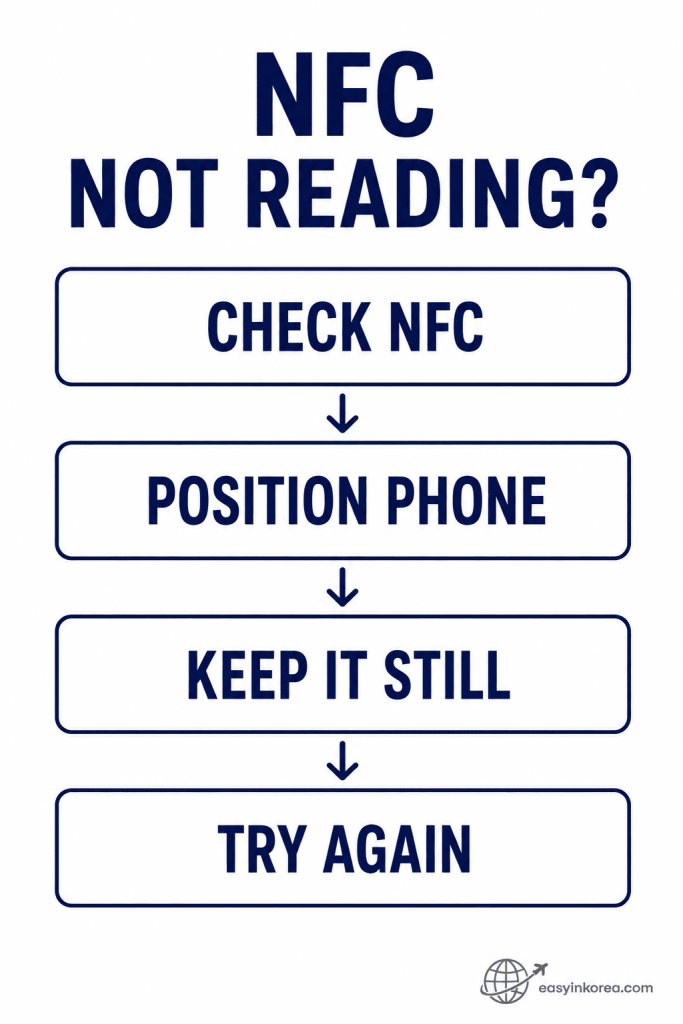
If SmartPass Not Working starts after your passport information has already been accepted, the problem may be the NFC passport-chip step rather than the first passport scan.
Check what the SmartPass app is asking for before moving the phone. The NFC reading area can differ between phone models, so use the current screen and your device guidance instead of copying the position shown for another phone.
Try the NFC step in this order:
1. Check NFC. Confirm that SmartPass is waiting for the electronic passport-chip reading step.
2. Position the phone. Hold the phone close to the passport and adjust its position slowly until the app begins reading.
3. Keep it still. Once reading starts, avoid moving the phone or passport until the app finishes the check.
4. Try again if needed. If the chip does not read, return to the NFC step and retry before restarting the full SmartPass registration.
Do not assume the passport scan failed just because the NFC step does not complete. If the passport information was already accepted, focus on the chip-reading step first.
NFC completed but SmartPass still stops? Continue below to the SmartPass ID and face-registration checks instead of repeating the passport scan.
NFC is the step that lets the phone read information from the electronic passport chip. The exact NFC reading area can differ between phone models, so avoid relying on an old diagram made for another device.
Try this in order:
1. Confirm that the app is waiting for the NFC passport-chip step.
2. Check that your phone supports the NFC function required by the app.
3. Hold the phone close to the passport.
4. Move the phone slowly until reading begins.
5. Keep both the passport and phone still while the chip is being read.
6. If necessary, check whether a thick phone case or another object is interfering with the reading position.
Do not repeatedly tap the phone against the passport or move it quickly from one position to another. Give the app time to detect and read the chip.
If NFC finishes successfully, move forward to the ID or face-registration step rather than repeating the passport process.
NFC Works, but SmartPass ID Registration Fails
If both the passport and NFC steps are complete, stop troubleshooting the passport and check the SmartPass ID registration step.
Passport and NFC already worked? Do not start from the beginning. Check whether the SmartPass ID registration is the first step that did not finish.
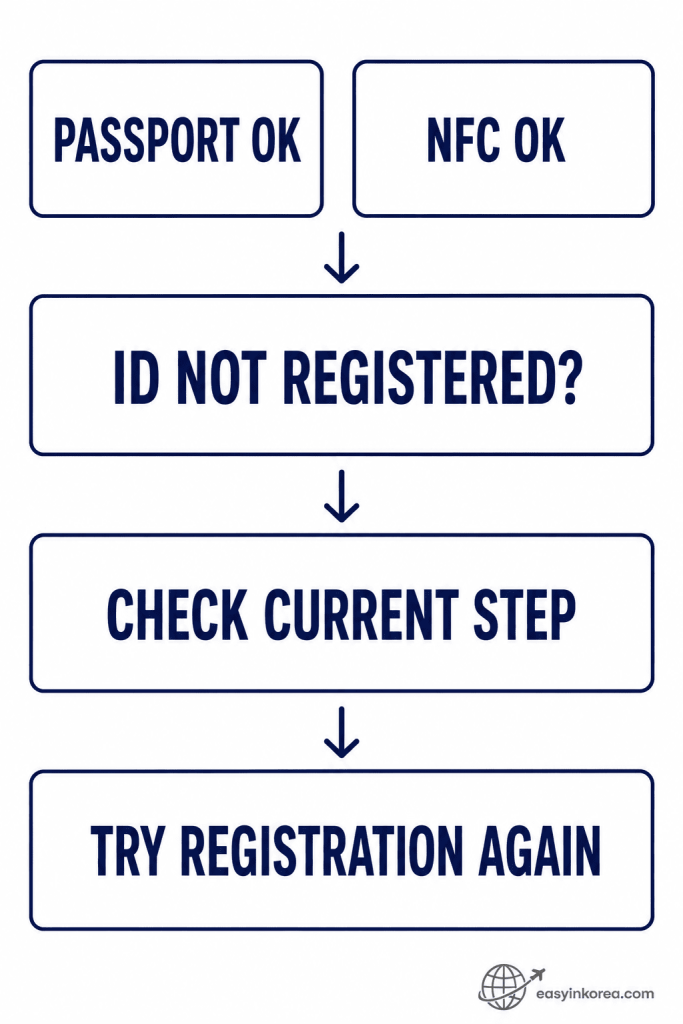
If SmartPass Not Working continues after the passport and NFC checks are complete, do not automatically repeat those earlier steps. First check whether SmartPass ID registration is where the process stopped.
Look at the current SmartPass screen and identify what the app is asking you to complete. If the passport and electronic passport-chip checks already worked, focus on the ID or face-registration step next.
Check the ID registration step in this order:
1. Confirm the earlier steps. If the passport and NFC checks are already complete, keep your attention on the next incomplete step.
2. Check the current screen. Follow the registration instruction currently shown in SmartPass rather than returning to an earlier step without a reason.
3. Complete the ID or face-registration step. Follow the on-screen position and capture instructions shown for the current registration.
4. Try registration again if it does not finish. Retry the incomplete registration step before restarting the entire SmartPass process.
The important clue is where registration first becomes incomplete. A later ID problem does not necessarily mean that your passport scan or NFC passport-chip check failed.
ID registration completed but SmartPass still does not continue? Check the boarding-pass and current-flight step below before repeating the full registration.
SmartPass registration continues after the passport has been checked. If the passport and NFC steps worked, the next problem may be related to SmartPass ID or facial-information registration.
Follow the instructions currently shown in the official SmartPass app. Do not depend on an old screenshot that shows a different button, menu, or registration sequence.
Keep the completed steps separate:
Passport completed → do not return unless the app asks you to.
NFC completed → move forward.
ID incomplete → troubleshoot the ID or face step.
Registration procedures and app screens can change over time. Current on-screen instructions should take priority over an older travel guide.
Face Registration Does Not Complete
If registration reaches the face step but does not finish, focus on the camera and the instructions shown on the current screen.
Face Registration Does Not Complete
Check that the SmartPass app has the camera access it needs. Then follow the face position shown on the screen.
Use a place where your face can be seen clearly. Remove anything that prevents the camera from following the current registration instructions.
If the face step fails, retry that step first. There is usually no reason to repeat a passport or NFC step that has already completed unless the app specifically asks you to do so.
Did You Get a New Passport?
A new passport changes your SmartPass registration even if SmartPass worked on an earlier trip.
Did you get a new passport? Check this before troubleshooting the same SmartPass ID that worked with your previous passport.
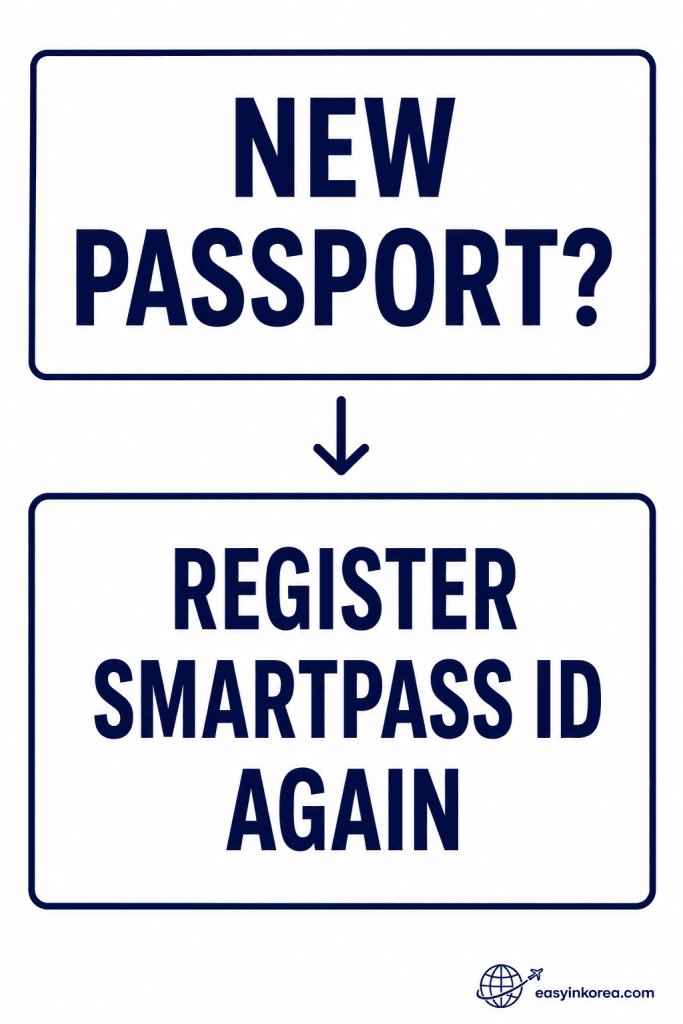
If SmartPass Not Working started after you received a new or reissued passport, check your SmartPass ID registration before repeating unrelated NFC or boarding-pass steps.
A SmartPass ID linked to your previous passport may need to be registered again after passport reissue. Start with the current passport rather than assuming the earlier registration still applies.
Check this condition first:
New or reissued passport? Use your current passport for SmartPass registration.
Previous SmartPass ID? Do not assume it remains connected after the passport changes.
Register again. Complete the SmartPass ID registration with the current passport before moving to later flight or boarding-pass checks.
This is different from a simple passport-scan or NFC problem. If the passport itself has changed, the SmartPass ID registration may need to change with it.
SmartPass ID registered again with your current passport? Continue below to the boarding-pass check for this departure.
If your passport has been renewed since you last used SmartPass, do not assume the previous SmartPass ID is still linked to your current passport.
New passport → Register your SmartPass ID again.
Incheon Airport currently states that SmartPass ID must be re-registered when a passport is reissued.
If SmartPass Not Working started only after you received a new passport, this is one of the first conditions to check.
SmartPass Boarding Pass Not Working
SmartPass ID registration and boarding-pass registration are separate checks, so an existing ID does not automatically mean this departure is ready.
SmartPass ID already registered? Check the boarding pass for this departure before repeating passport, NFC, or ID registration.
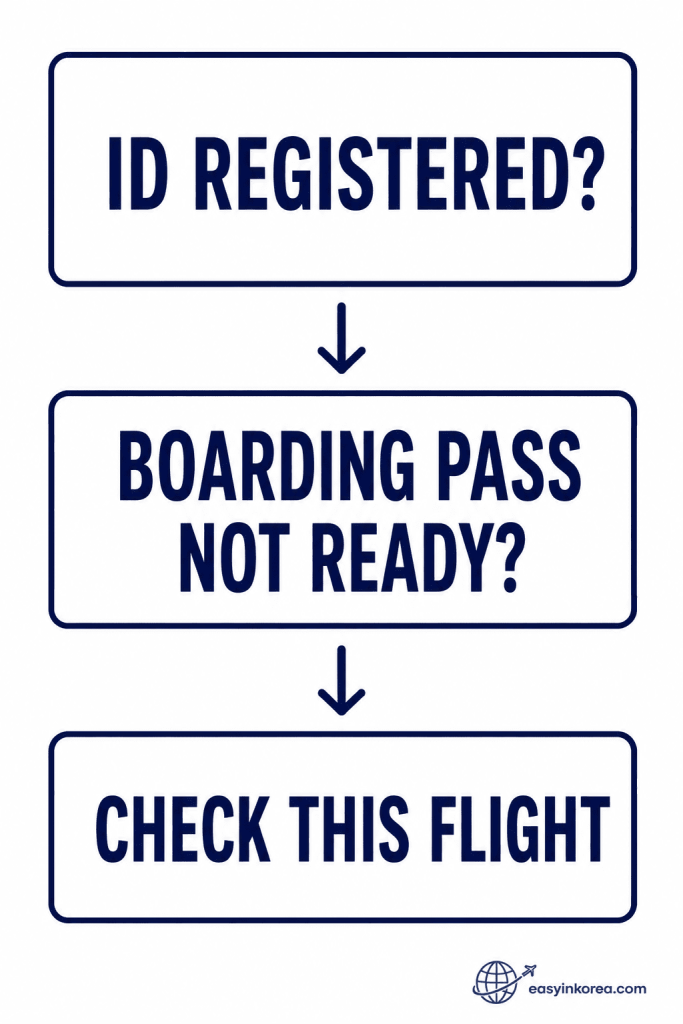
If SmartPass Not Working continues even though your SmartPass ID is already registered, check the boarding pass for your current departure before repeating earlier registration steps.
SmartPass ID registration and boarding-pass registration are separate checks. An existing SmartPass ID does not automatically mean the current flight is ready for every SmartPass departure step.
Check the current flight in this order:
1. Confirm your SmartPass ID. If the ID registration is already complete, do not return to passport or NFC troubleshooting without a reason.
2. Check this departure. Look at the flight and boarding-pass information currently shown in SmartPass.
3. Check the boarding-pass status. Confirm whether the boarding pass for this departure has been registered or connected through the current check-in process.
4. Follow the current instructions. If the flight information is incomplete, use the current SmartPass and airline check-in guidance rather than an older airline list or screenshot.
A boarding-pass problem does not necessarily mean your passport, NFC, or SmartPass ID failed. If those earlier steps are complete, focus on the current flight first.
Boarding pass looks ready but SmartPass still does not work? Continue below to the app, airport lane, and fallback checks instead of restarting every registration step.
Your SmartPass ID can remain registered while the boarding pass for your current departure still needs attention.
Think of them as two separate questions:
Is my SmartPass ID registered?
Is the boarding pass for this departure registered?
Incheon Airport currently requires boarding-pass information for each departure. Some participating airline check-in processes can register it automatically, so check the current status before assuming the process has failed.
Airline participation can change. Use the current Incheon Airport SmartPass information and your airline’s current check-in instructions rather than relying on an old airline list.
Your Boarding Pass May Already Be Registered
A missing manual registration step does not always mean there is a SmartPass error.
Your Boarding Pass May Already Be Registered
Some participating airlines can connect boarding-pass information during check-in.
Before repeating the registration process, check whether your current flight information already appears correctly in SmartPass.
Because airline participation and service connections can change, check the current official SmartPass page when you need airline-specific information.
SmartPass App Will Not Continue
If passport, NFC, and registration checks do not explain why SmartPass is not working, check the app and the current phone permissions.
First identify what the app was trying to do when it stopped. A general app problem should be checked differently from a passport or NFC reading problem.
Check these basic conditions:
Internet connection
Current SmartPass app version
Camera permission
NFC access or support when the passport chip is being read
The exact registration step shown on the screen
If appropriate, close and reopen the app and return to the incomplete step. Avoid deleting completed registration information unless the current app instructions or official support tell you to do so.
Do not rely on an unofficial error-code explanation unless the same message is confirmed by a current official source.
SmartPass Registered, but You Cannot Use the Lane
Successful registration does not mean every airport service point uses SmartPass in exactly the same way.
If your SmartPass ID and flight information appear ready but the lane or gate does not work as expected, check the location before trying to register again.
SmartPass availability can differ between departure processes, airline services, and boarding gates. Participating services can also change over time.
At the airport:
Check the current SmartPass signs.
Confirm that the lane or gate supports the service you are trying to use.
Follow airport or airline staff instructions if the current process differs from an older guide.
A lane-availability problem does not automatically mean your SmartPass registration failed.
SmartPass Is Not the Same as Automated Immigration
Do not treat every facial or automated airport process as SmartPass.
SmartPass is an Incheon Airport facial-recognition service used for supported departure processes. Korea also has separate immigration and automated-entry systems.
Registration or eligibility for one system does not automatically register you for another.
If the problem occurs during immigration rather than a SmartPass-supported departure step, follow the immigration signs and instructions for that process instead.
Still Not Working? Use the Airport Fallback
If SmartPass is still not working, stop repeating the same failed step and continue with the current airport process.
SmartPass still not working? Stop repeating the same failed step. Keep your travel documents with you and move to the current airport process.
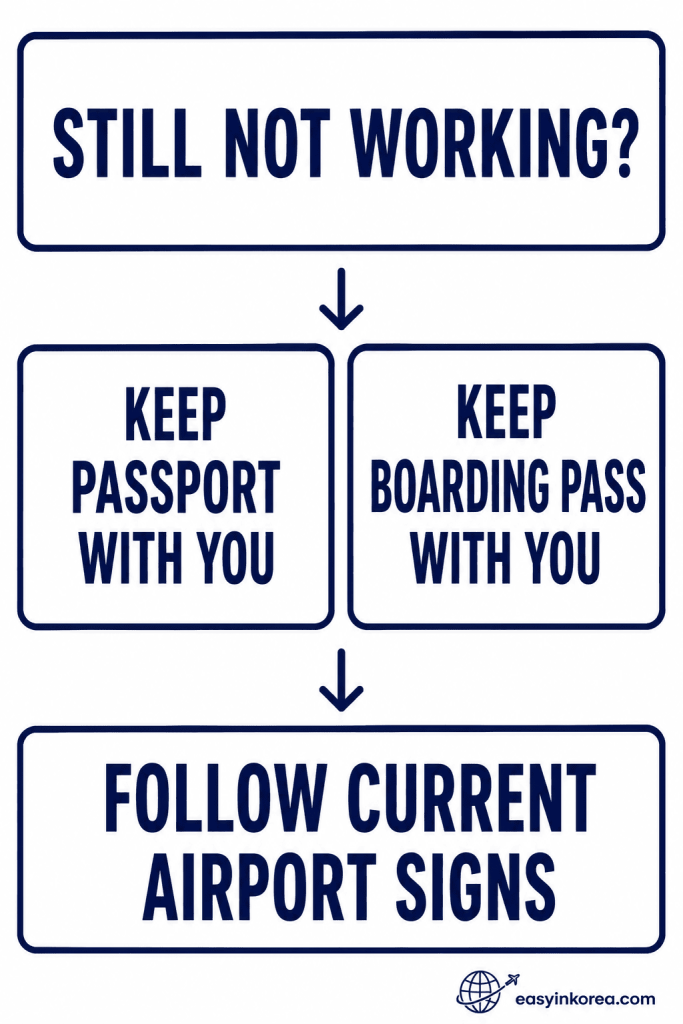
If SmartPass Not Working continues after you have checked the passport, NFC, SmartPass ID, and boarding-pass steps, do not spend too long repeating the same failed action.
Keep your passport and boarding pass where you can reach them easily. Then look at the current airport signs and continue through the departure process that is available at your location.
If SmartPass still does not work:
1. Stop repeating the same failed step. If several attempts produce the same result, move on to the current airport process rather than restarting everything again.
2. Keep your passport with you. Do not place it somewhere that is difficult to reach while moving through departure checks.
3. Keep your boarding pass with you. Have the current flight information ready if an airline or airport check requires it.
4. Follow current airport signs. Use the lane, checkpoint, or staffed process shown at the airport and ask airport or airline staff if the next step is unclear.
SmartPass availability can differ by departure process, airline service, and location. A problem at one lane or gate does not automatically mean that every earlier registration step failed.
The practical fallback is simple: keep your passport and boarding pass ready, follow the current airport signs, and continue with the departure process available in front of you.
SmartPass is one airport service. A registration problem should not leave you standing in the same place repeatedly trying the same step while your departure time gets closer.
Keep your passport and boarding pass with you and follow the current airport signs for the normal departure process. Ask airport or airline staff if you are unsure which lane or check is appropriate.
Fallback order
1. Stop repeating the same failed SmartPass step.
2. Keep your passport and boarding pass ready.
3. Check current airport signs.
4. Continue through the appropriate staffed or standard process when required.
Even when you plan to use SmartPass, keep essential travel documents with you rather than placing them where you cannot reach them during departure.
Things Travelers Wish They Knew Before Using SmartPass
A small difference between two registration steps can feel like the same problem when you are holding a phone, passport, and boarding pass at the airport.
A failed passport scan and a failed NFC scan can look like the same problem. The difference becomes clearer when you look at what the app is asking for at that moment.
If the passport information is already accepted, repeating the first scan may not help an NFC or ID problem.
The same is true for your boarding pass. A registered SmartPass ID does not automatically answer every question about your current flight.
Look at the current step first.
Then fix only the part that has not finished.
Keep your passport and boarding pass somewhere you can reach them easily. If SmartPass does not work as expected, you can move to the current airport procedure without searching through your luggage.
SmartPass Not Working Checklist
Use this SmartPass Not Working checklist before repeating the full registration process.
Passport
✓ Is the passport step complete?
✓ Are you using an e-passport required for app registration?
NFC
✓ Is the app waiting for the passport chip?
✓ Has the NFC chip-reading step completed?
SmartPass ID
✓ Is your SmartPass ID registered?
✓ Did you receive a new passport since the previous registration?
✓ Did the face-registration step finish?
Boarding Pass
✓ Is the boarding pass for this departure registered or already connected?
App
✓ Does the app have the required camera or NFC access?
✓ Are you following the current screen rather than an older tutorial?
At the Airport
✓ Is SmartPass available at the lane or service point you are trying to use?
✓ Do you still have your passport and boarding pass with you?
If one item is incomplete, return to that step first. Do not restart everything unless the app or current airport instructions require it.
If the problem continues, check the latest official SmartPass information before relying on an older screenshot, airline list, or registration guide.
Related Guides
Continue with the guide that matches your next practical step before or during departure from Incheon Airport.