Korea eSIM Not Working After Arrival?
If your Korea eSIM is not working after arrival, first find where the connection stopped. Do not change every phone setting at once.
If your Korea eSIM is not working after arrival, do not change every phone setting at once.
First, find the last step that worked.
Check these points in order:
1. Was the eSIM installed?
2. Is the eSIM line turned on?
3. Is it selected for mobile data?
4. Does your provider require data roaming?
5. Is the phone connected to a Korean mobile network?
6. Does your eSIM provider give any additional activation or APN instructions?
The correct fix depends on where the connection stopped and on your eSIM provider’s instructions.
Do not delete the eSIM unless your provider confirms that it can be installed again.
A Korea eSIM not working after arrival does not always mean the eSIM itself has failed.
The travel eSIM may be installed but turned off. Another SIM may still be selected for mobile data. Your eSIM may also need a setting required by its provider.
Keep a working Wi-Fi connection if one is available. You may need it to open your provider’s email, app, setup guide, or support page while checking the problem.
Find the problem first. Change one setting at a time.
First, Find What Is Not Working
Start with what you can see on the phone. Different symptoms need different checks.
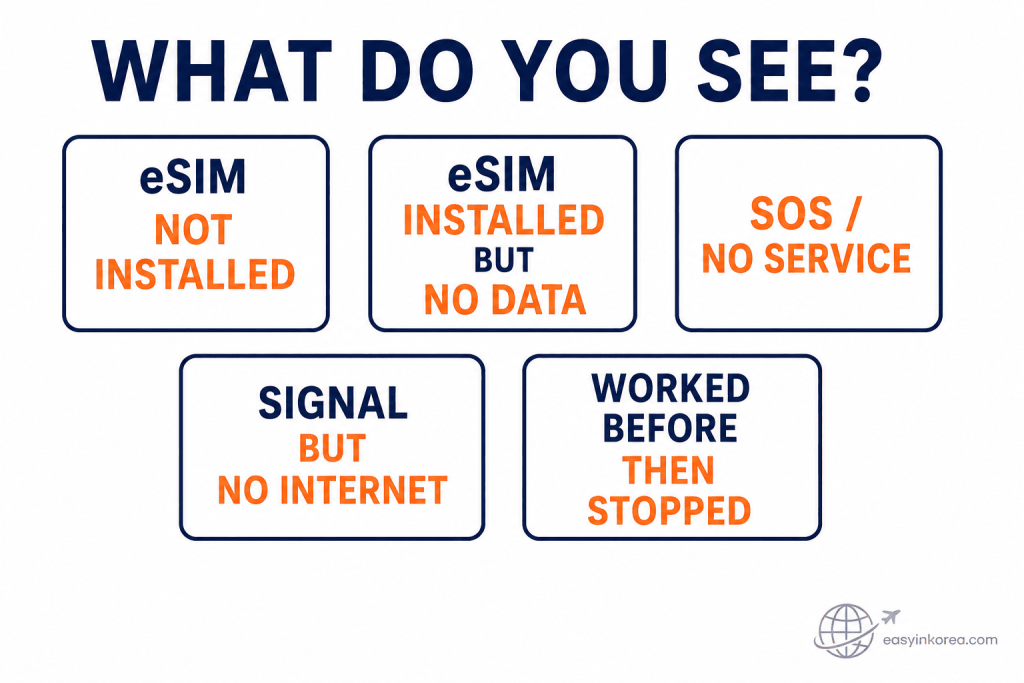
If your Korea eSIM is not working, the next step depends on what you see on the phone.
Do not treat every eSIM problem as the same connection failure.
eSIM not installed
Start with the installation or activation instructions from your eSIM provider.
eSIM installed but no data
Check whether the eSIM line is enabled and selected for mobile data.
SOS / No Service
Check whether the phone has connected to a supported mobile network.
Signal but no internet
The phone may be connected to a network while the mobile data connection is still not working.
Worked before, then stopped
Check whether something changed after the connection was already working, such as network selection, data settings, plan status, or provider service.
Follow the troubleshooting path that matches your situation instead of changing every setting at once.
If your provider gives specific roaming, APN, activation, or network instructions, follow those instructions first.
Match the symptom first
Is the Korea eSIM Actually Installed?
Before changing mobile data settings, confirm that the travel eSIM actually appears on your phone.
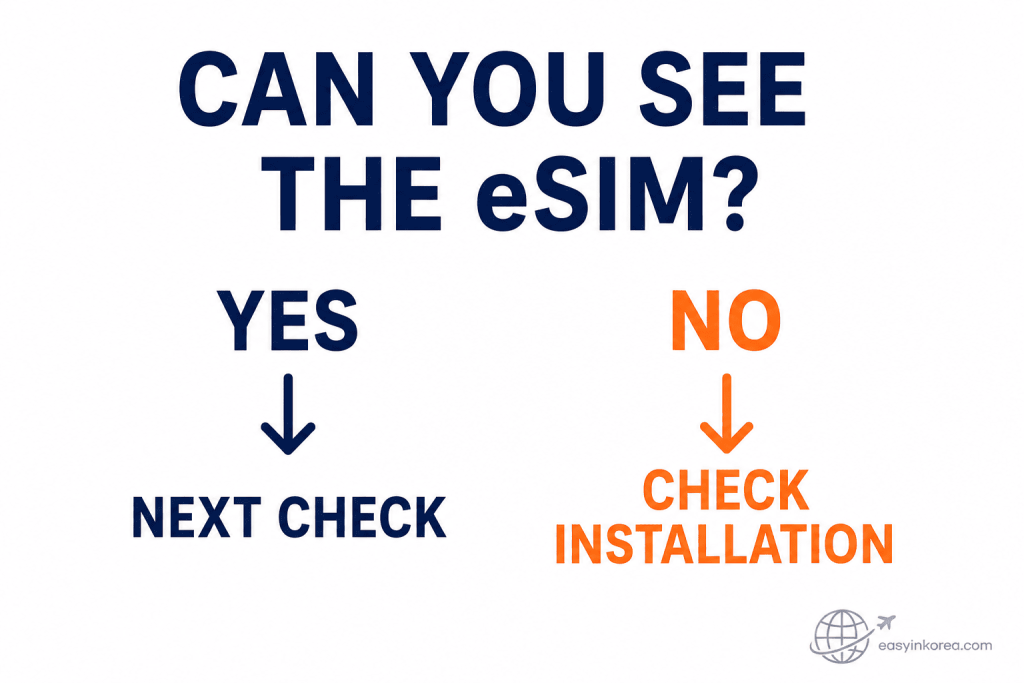
If your Korea eSIM is not working, first confirm that the eSIM appears in your phone’s SIM or cellular settings.
YES — You can see the eSIM
The eSIM is present on the phone. Continue to the next check and confirm whether the eSIM line is turned on and selected correctly for mobile data.
NO — You cannot see the eSIM
Return to the installation or activation instructions supplied by your eSIM provider. Confirm that the installation was completed for this device before changing unrelated network settings.
The name shown for the eSIM may differ by phone, operating system, or provider, so look for the travel eSIM or cellular plan you added before arriving in Korea.
Do not delete an existing eSIM just to start again unless your provider confirms that the plan can be reinstalled.
Open the SIM or cellular settings on your phone and look for the eSIM you purchased for Korea.
Use Wi-Fi to open the purchase email, provider app, or activation page if you need to confirm whether installation finished correctly.
Is the eSIM Line Turned On?
An installed eSIM can still be inactive if its cellular line is turned off.
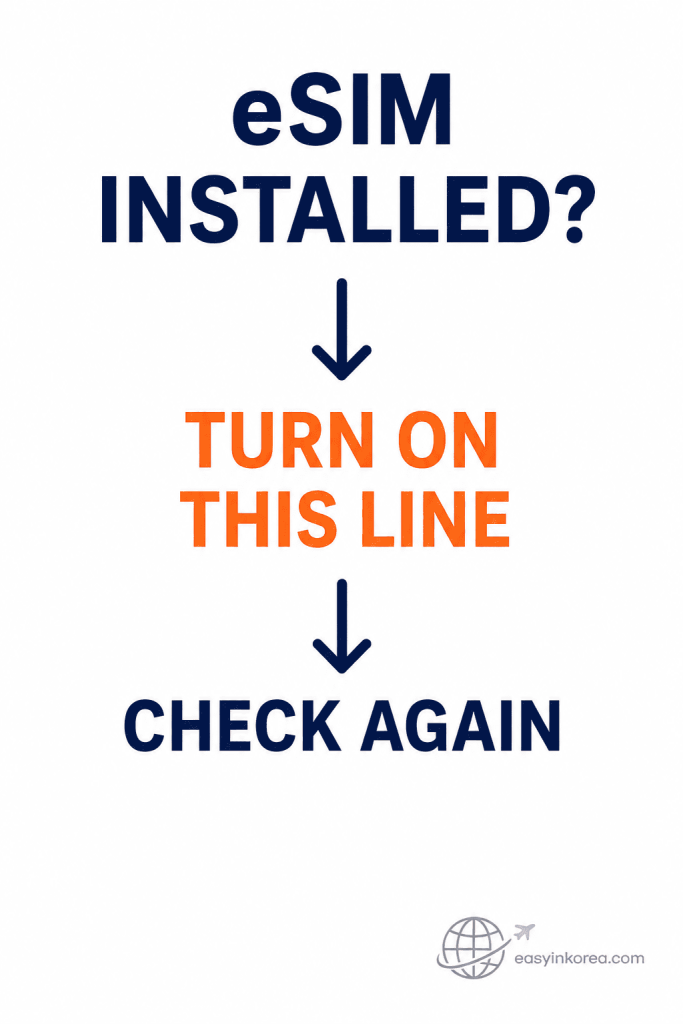
If your Korea eSIM is not working even though it is installed, check whether the travel eSIM line is turned on.
Open the SIM or cellular settings on your phone and find the eSIM you installed for Korea.
If the eSIM line is off
Turn on that line, then give the phone a moment to check for a mobile network.
If the eSIM line is already on
Leave it on and continue to the next check: which SIM is being used for mobile data.
The exact menu name can differ between iPhone, Android phones, and software versions.
At this stage, do not delete or reinstall the eSIM. First confirm that the installed line is enabled and continue through the checks in order.
Check the travel line
Select the travel eSIM in your phone’s cellular or SIM settings and make sure the line is enabled.
On iPhone, you may see Turn On This Line. Android menu names can differ by phone model and software version.
After turning the line on, give the phone a moment to search for a network before changing another setting.
Which SIM Is Using Mobile Data?
If your home SIM and Korea eSIM are both active, check which line is actually using mobile data.
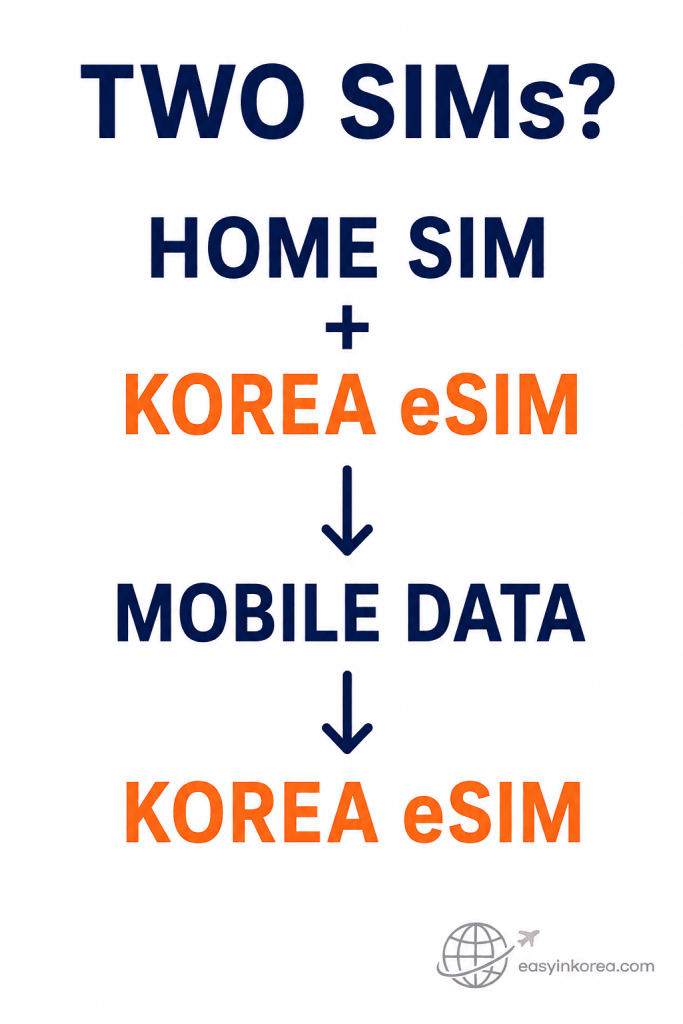
If your Korea eSIM is not working while both your Home SIM and Korea eSIM are active, check which line your phone is using for mobile data.
Open your SIM, cellular, or mobile network settings and find the option for mobile data.
If Mobile Data is set to your Home SIM
Select the Korea eSIM when you want that travel eSIM to provide your internet connection in Korea.
If Mobile Data is already set to the Korea eSIM
Leave that selection in place and continue to the next troubleshooting check.
You do not need to turn off your Home SIM simply because two SIMs are shown. The important check here is which SIM is assigned to mobile data.
If the Korea eSIM is selected and data still does not work, continue to your provider’s roaming and network requirements rather than changing several settings at once.
A common reason for a Korea eSIM not working is that the travel eSIM is active but another SIM is still selected for mobile data.
The default line for calls or text messages does not have to be the same line used for mobile data.
If your home SIM remains active, also review its roaming settings so you know which line can use mobile data abroad.
Does Your Korea eSIM Require Data Roaming?
Some travel eSIMs use a partner network in Korea and require Data Roaming. Check the instructions for the eSIM you purchased.
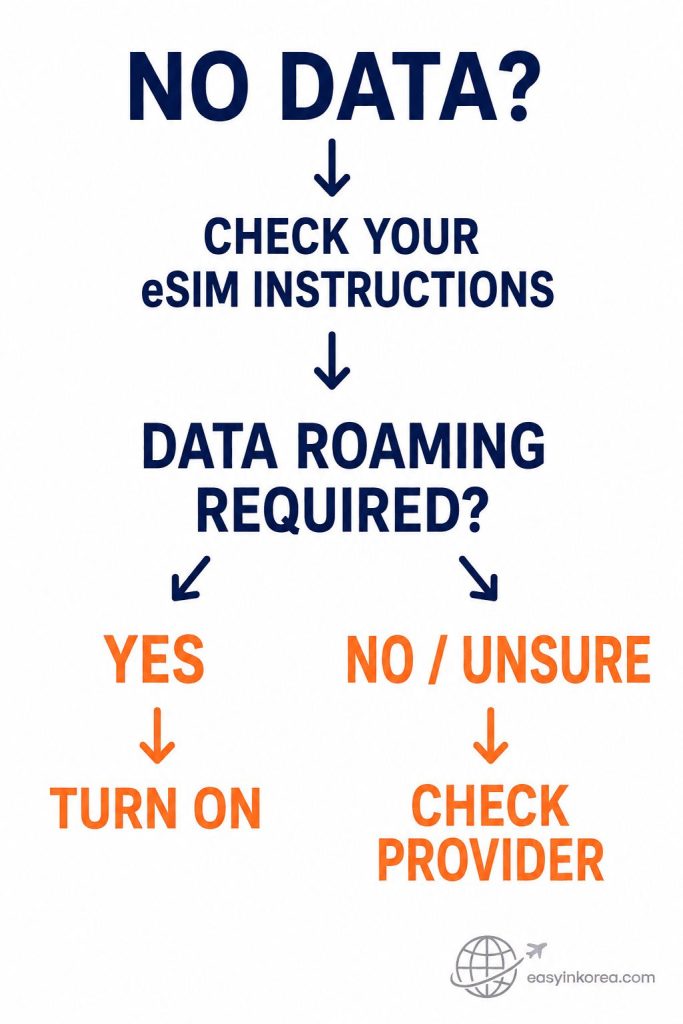
If your Korea eSIM is not working even though the line is on and selected for mobile data, check the roaming instructions for your specific eSIM plan.
Some travel eSIMs use roaming to connect to a partner network in Korea. Others may use different settings.
If your provider says data roaming is required
Turn on data roaming for the Korea eSIM, then check the connection again.
If your provider says data roaming is not required
Keep the setting as instructed and continue to the next troubleshooting step.
If you are not sure
Check the installation email, app, setup page, or support information from the eSIM provider before changing the setting.
Do not assume that another traveler’s roaming setting will also be correct for your eSIM.
If the required roaming setting is correct and there is still no data, continue to the network connection and provider-specific checks.
Do not assume that every travel eSIM uses the same roaming setting.
Some travel eSIM providers require Data Roaming because the eSIM connects through a partner network in Korea.
Use the roaming setting required by your eSIM provider rather than copying a setting from another travel eSIM.
Still No Data? Reconnect to the Network
If the basic settings look correct, let the phone disconnect and search for a mobile network again.
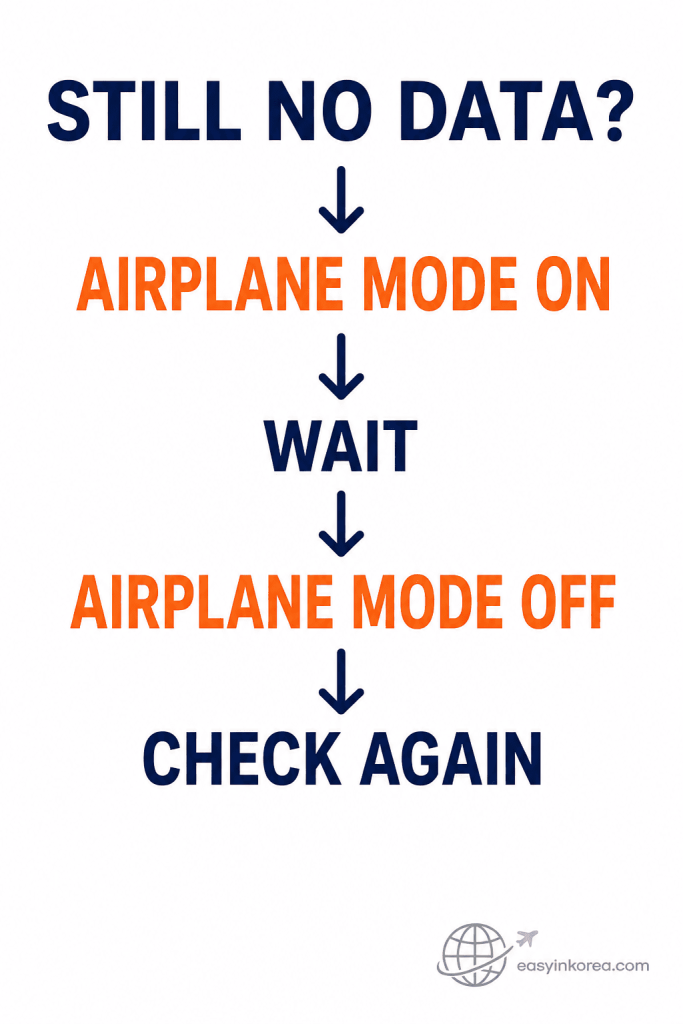
If your Korea eSIM is not working after the earlier checks, try reconnecting the phone to the mobile network.
Turn Airplane Mode on, wait briefly, then turn Airplane Mode off.
After Airplane Mode is off
Give the phone a moment to search for a mobile network again.
Then check mobile data
See whether the Korea eSIM now connects and loads a webpage or another online service.
If the connection returns, you can stop troubleshooting.
If there is still no data, continue to the network, APN, activation, and provider-specific checks instead of repeating the same reconnect step.
Turn Airplane Mode on, wait briefly, and turn it off again.
Give the phone time to search for a mobile network. Then test mobile data again.
If the connection still does not return, restart the phone once before moving to more advanced checks.
Reconnect first. Do not jump directly to deleting the eSIM or changing APN settings.
Does Your Phone Show SOS or No Service?
SOS or No Service is different from having a signal but no internet connection.
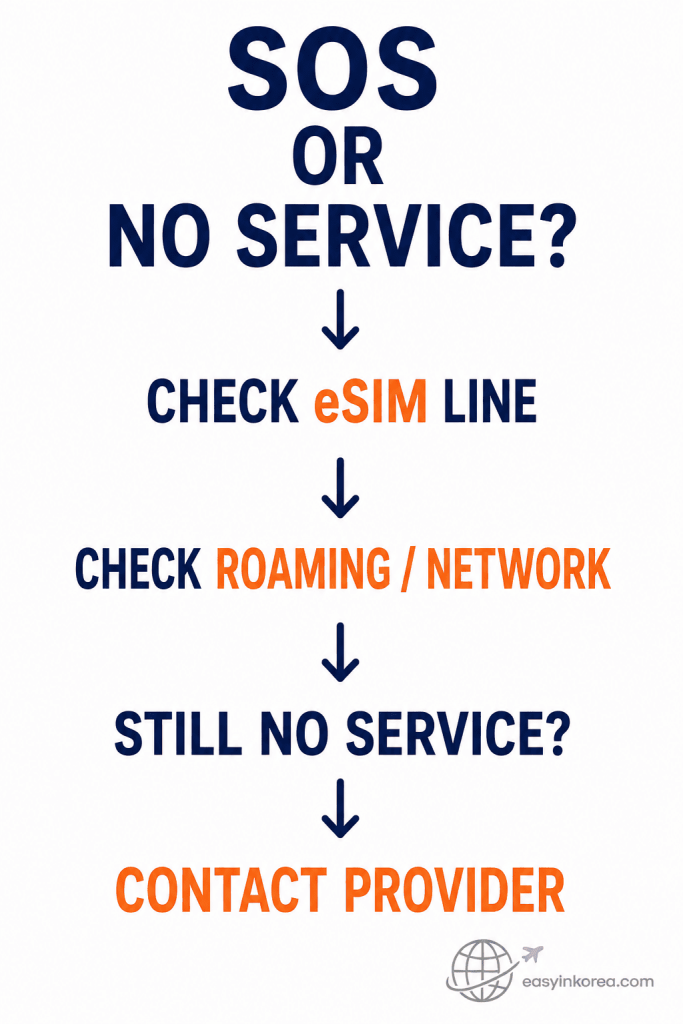
If your Korea eSIM is not working and the phone shows SOS or No Service, first confirm that the Korea eSIM line is still turned on.
Then check the roaming and network instructions supplied for your specific eSIM plan.
Check the eSIM line
Confirm that the installed Korea eSIM is enabled on the phone.
Check the roaming requirement
Follow your provider’s instructions. Turn on data roaming only when your eSIM plan requires it.
Check the network connection
See whether the phone can connect to a mobile network supported by your eSIM provider in Korea.
If the phone still shows SOS or No Service after these checks, the issue may need provider-side confirmation.
Contact your eSIM provider and ask them to check the plan status, activation, and supported network information before you delete, reinstall, or reset the eSIM.
Start with the mobile connection
If your phone shows SOS, Searching, or No Service, first confirm that the Korea eSIM line is turned on.
Next, check the roaming or network instructions supplied by the eSIM provider and reconnect the phone.
If the travel eSIM still cannot connect to a mobile network, contact the company that issued the eSIM so it can check the activation and plan status.
Signal but No Internet?
Seeing signal bars does not always mean the travel eSIM is ready to carry mobile data.
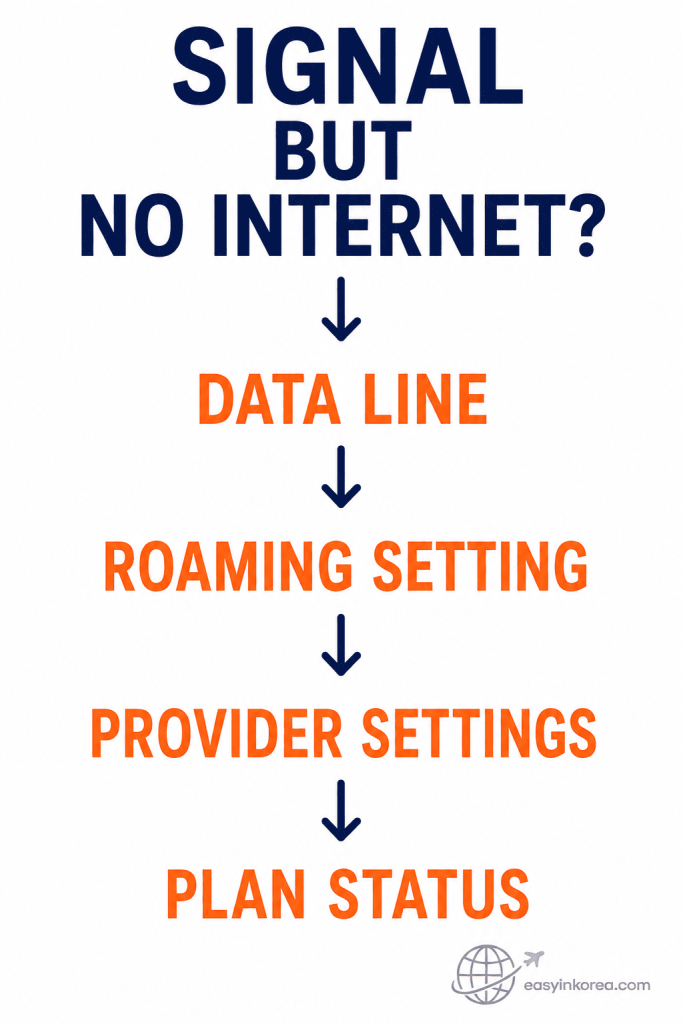
If your Korea eSIM is not working even though the phone shows a mobile signal, the phone may be connected to a network while the data connection is still not working.
Follow these checks in order instead of changing several settings at once.
1. Check the data line
Confirm that the Korea eSIM is selected for mobile data.
2. Check the roaming setting
Follow the instructions for your specific eSIM plan. Turn on data roaming only when your provider requires it.
3. Check provider-specific settings
Review the setup email, app, or support page for any additional network or APN instructions that apply to your plan.
4. Check the plan status
If the settings look correct but there is still no internet, confirm the activation, validity, and available data for the plan with your provider.
Do not enter a random APN or copy another traveler’s settings unless your own eSIM provider gives those instructions.
If the plan is active and the required settings are correct but data still does not work, contact the provider before deleting or reinstalling the eSIM.
If the phone shows a network but websites and apps do not load, return to the mobile data settings rather than reinstalling the eSIM.
Check the APN Only If Your Provider Tells You To
APN settings are provider-specific. Do not copy a value from another eSIM guide.
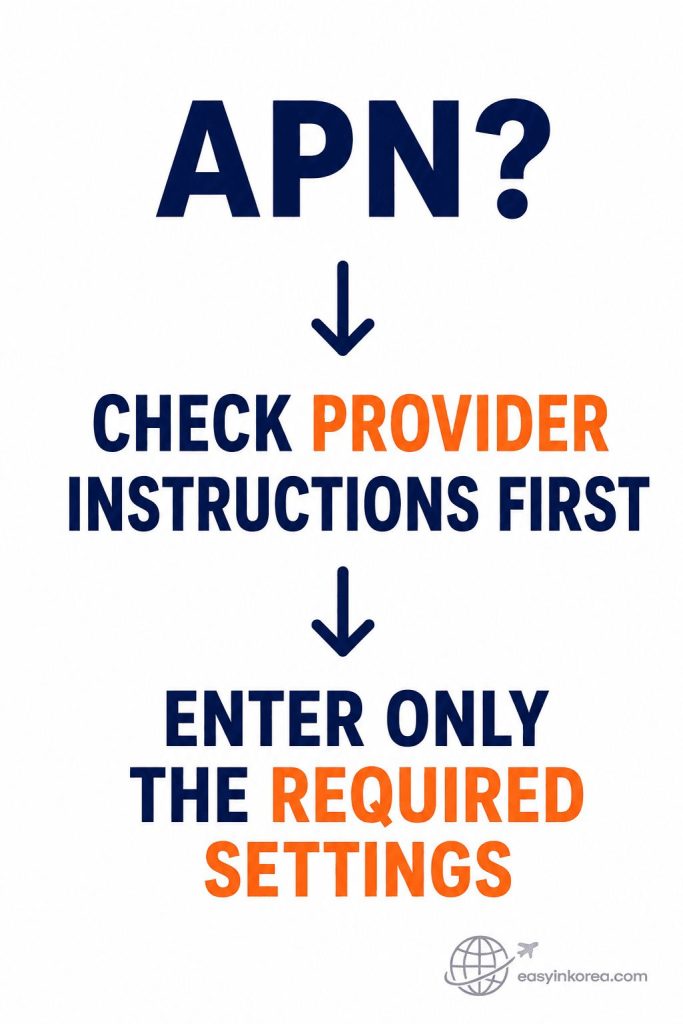
An APN tells the phone how to connect to a provider’s mobile data service.
Some eSIMs configure the APN automatically. Other providers may give you a specific value to enter.
If the APN menu is unavailable or the provider did not tell you to change it, leave it alone and move to the next check.
Do Not Delete the eSIM Yet
Deleting the eSIM is not a good first troubleshooting step.
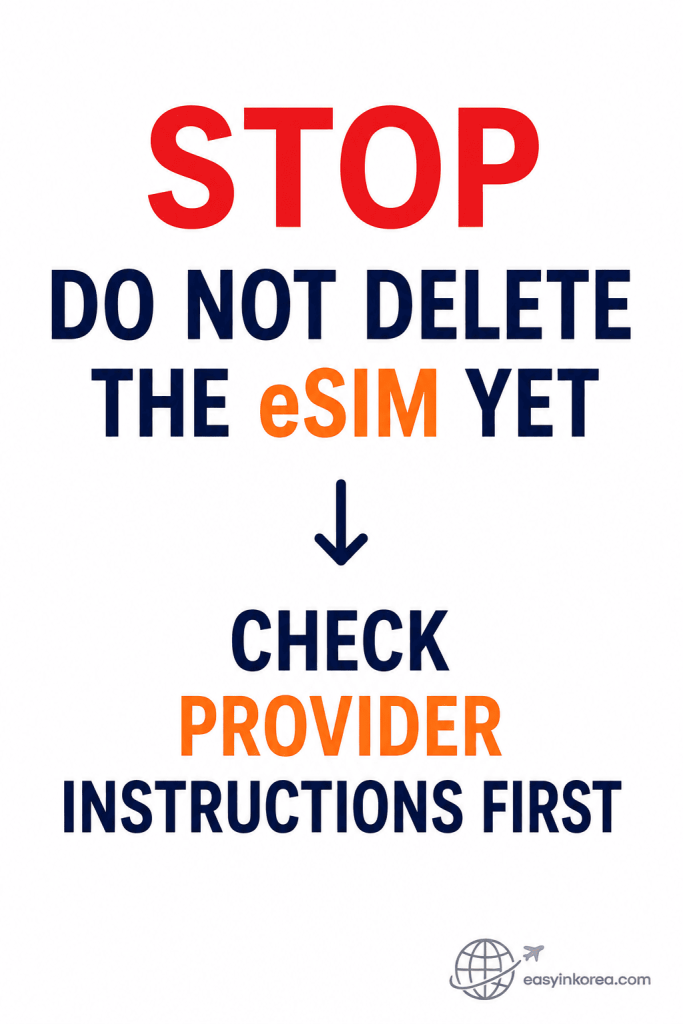
If your Korea eSIM is not working, deleting it should not be the first troubleshooting step.
Removing an eSIM from the phone may affect how you reinstall or reactivate that plan, depending on the provider.
Before deleting the eSIM
Check the provider’s app, setup page, order email, or support information for reinstallation rules.
Confirm that the plan can be installed again
Look for instructions about reusing the QR code, reinstalling the plan, requesting a replacement, or contacting support.
If the provider tells you to remove it
Follow the provider’s current instructions for that specific plan and device.
Turning an eSIM line off temporarily is not the same as deleting the eSIM from the phone.
If you are unsure whether the plan can be restored, leave the eSIM installed and contact the provider before removing it.
If your Korea eSIM is not working, it can be tempting to delete the eSIM and install it again.
Check your provider’s instructions before doing that. Reinstallation rules, activation codes, and QR code reuse can differ between providers.
Keep the installed eSIM until your provider tells you that deletion or reinstallation is necessary.
Did the eSIM Work and Then Stop?
An eSIM that worked earlier has a different troubleshooting path from one that never connected.
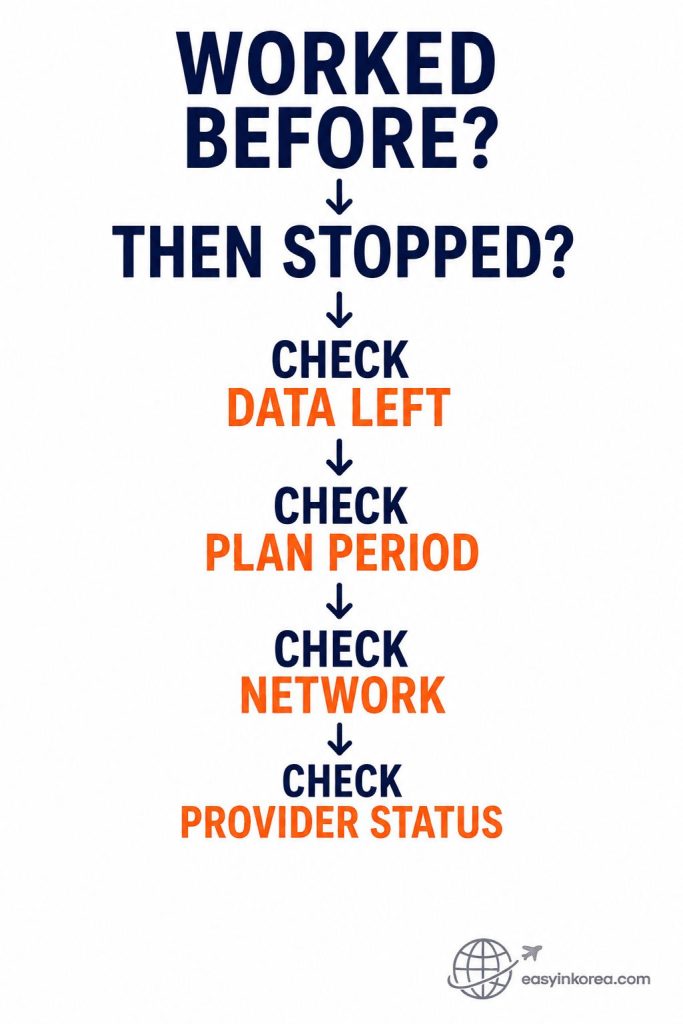
If your Korea eSIM is not working after it worked earlier, do not assume that the original installation has failed.
First, check what may have changed since the connection was working.
1. Check data left
Open your provider’s app, account page, or plan information and check whether usable data is still available.
2. Check the plan period
Confirm that the plan is still within its valid usage period.
3. Check the network
See whether the phone is still connecting to a mobile network supported by your eSIM plan in Korea.
4. Check provider status
If the plan and phone settings look normal, check the provider’s current service information or contact support about the plan status.
A connection that worked before can stop for different reasons, so do not treat low data, an ended plan period, a network issue, or a provider-side problem as confirmed until you check.
If the plan is still active and the connection should be available, continue with the provider’s troubleshooting steps before deleting or reinstalling the eSIM.
If the eSIM worked after arrival and stopped later, check the travel plan before reinstalling anything.
iPhone Quick Check
On iPhone, check the travel line and cellular data selection before moving to advanced settings.
iPhone quick path
1. Open Settings → Cellular.
2. Find the Korea or travel eSIM.
3. Check that the line is turned on.
4. Open Cellular Data and check which SIM is selected.
5. Check Data Roaming only according to the provider’s instructions.
6. Reconnect and test mobile data again.
Menu wording can change with the iPhone model and iOS version. Use the current Apple settings shown on your phone.
Android Quick Check
Android menu names differ by phone brand and software version. Follow the same checks even if the screen looks different.
Google Pixel
Open Settings → Network & internet → SIMs. Select the travel eSIM and check whether the SIM and mobile data are enabled.
Samsung Galaxy
Open Settings → Connections → SIM manager. Check that the eSIM is enabled and review the mobile data line.
If your Android phone uses different menu names, search Settings for SIM, Mobile data, or Roaming.
Are You Using Dual SIM?
Two active SIMs can make it harder to see which line handles calls and which line handles mobile data.
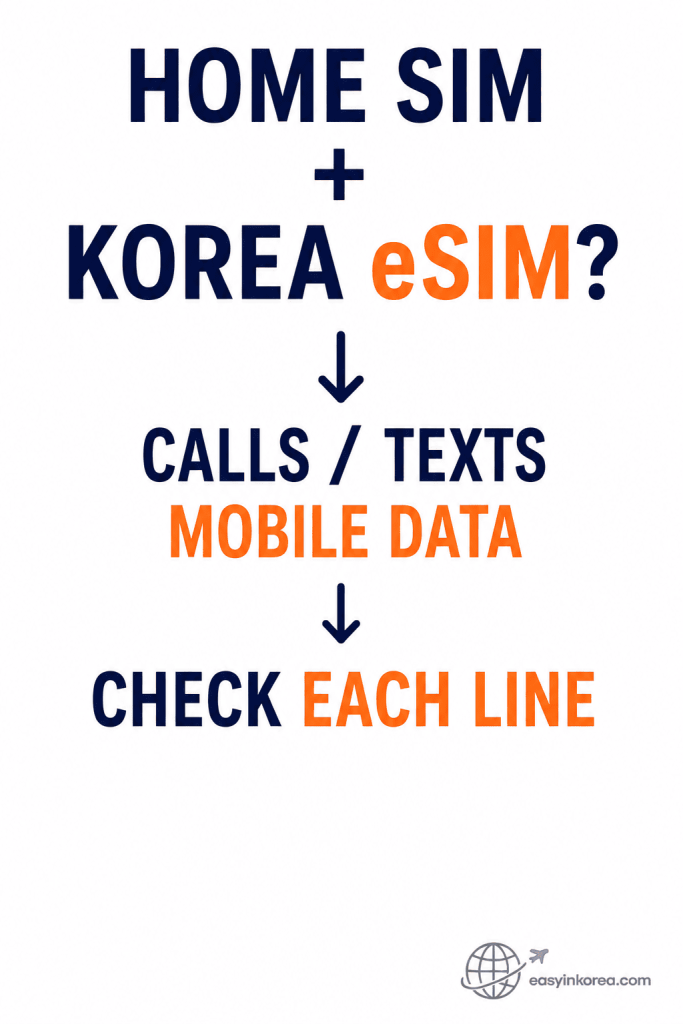
If your Korea eSIM is not working while your Home SIM is also active, check how your phone is using each line.
Dual SIM phones can use one line for calls or texts and another line for mobile data.
Check calls
See which SIM is selected for outgoing calls. Do not assume that your Korea eSIM includes voice service.
Check texts
Check which line is being used for SMS. A data-only travel eSIM may not include standard SMS service.
Check mobile data
If you want to use the Korea eSIM for internet access, confirm that it is selected for mobile data.
Check what your plan includes
Confirm whether your specific Korea eSIM provides data only or also includes voice or text services.
You do not need to turn off your Home SIM simply because both lines are active. First check what each line is being used for.
If the Korea eSIM is selected for mobile data but internet access still does not work, return to the roaming, network, provider-setting, and plan-status checks that match your problem.
A Dual-SIM phone may keep your home number available for calls or messages while using the Korea eSIM for mobile data.
Check the mobile data setting separately. Do not assume that the line shown as your primary number is also supplying internet access.
Need Internet Right Now?
If you need directions, transport information, or a booking now, restore temporary internet access before continuing.
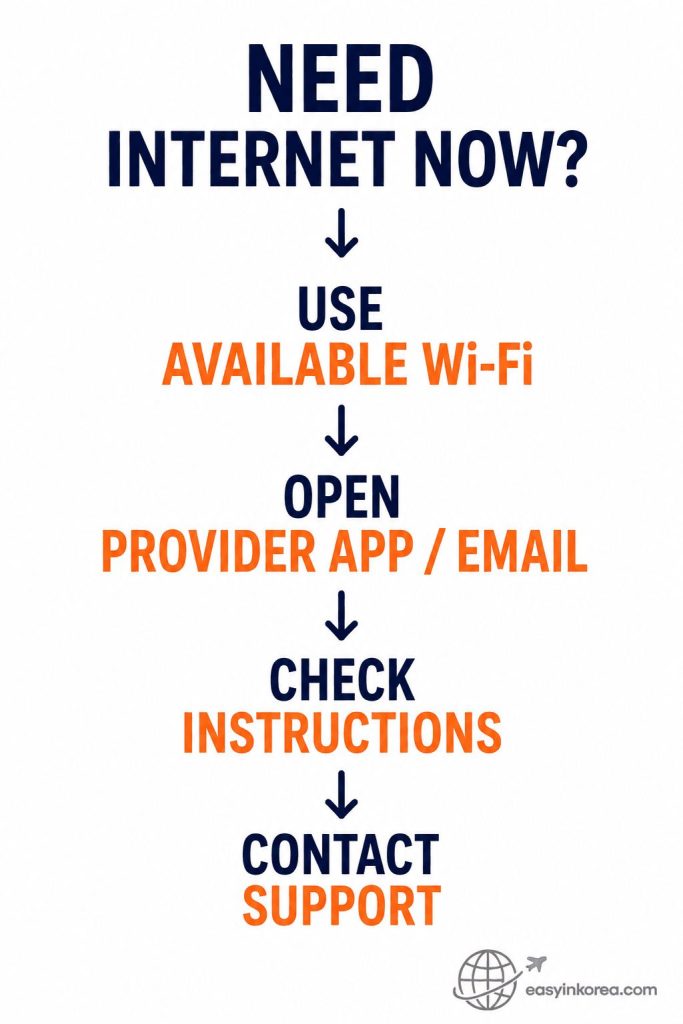
If your Korea eSIM is not working and you need internet now, use an available Wi-Fi connection as a temporary way to get online.
Then use that connection to check the information for your own eSIM plan.
1. Connect to available Wi-Fi
Use a Wi-Fi connection that is available to you so you can access your provider’s information.
2. Open the provider app or order email
Look for the setup, activation, roaming, network, APN, or troubleshooting instructions for your specific eSIM plan.
3. Follow only the instructions that apply to your plan
Provider requirements can differ, so do not copy settings from a different eSIM service.
4. Contact provider support if needed
Ask the provider to check activation, plan status, supported network information, or any other account-specific issue that you cannot confirm on the phone.
Wi-Fi is a temporary connection here. It does not confirm that the eSIM problem itself has been fixed.
Keep the eSIM installed while you check the provider’s instructions unless the provider specifically tells you to remove or reinstall it.
Connect to an available trusted Wi-Fi network if you need internet immediately.
Then open the purchase email, provider app, activation page, or support page for your eSIM.
This lets you check the exact activation, roaming, APN, and network instructions without guessing from another provider’s settings.
What to Send Your eSIM Provider
Give support enough information to identify the problem without exposing sensitive activation details.
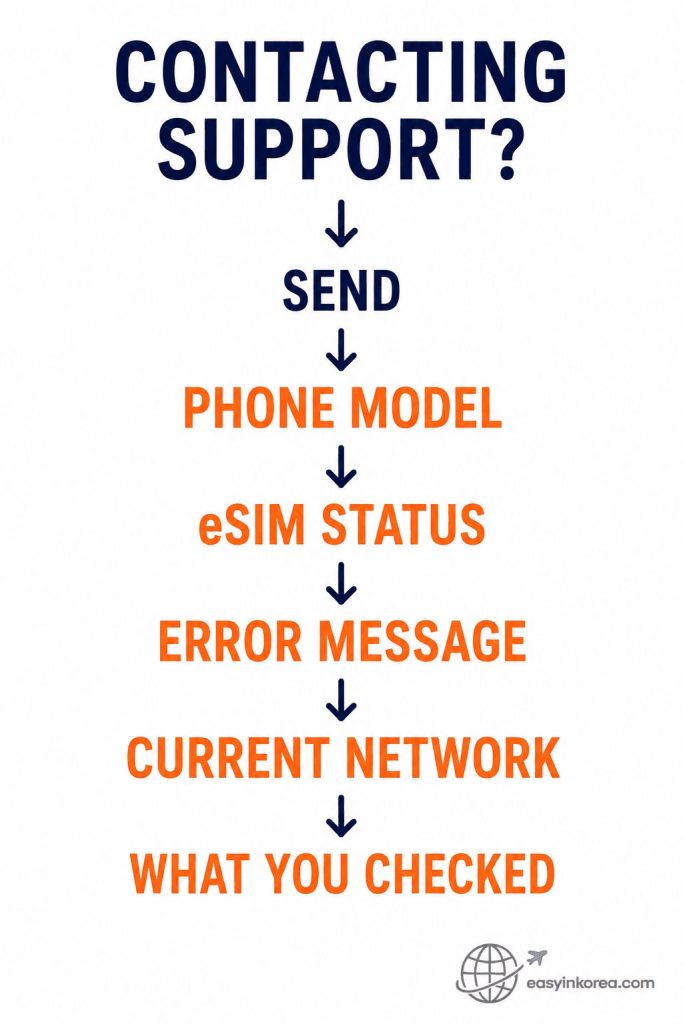
If your Korea eSIM is not working after the troubleshooting checks, contact the provider with clear information about the phone and the current connection status.
This helps support see what has already been checked and which part of the setup may still need attention.
Phone model
Send the exact phone model you are using. If useful, include the current operating system version shown in the phone settings.
eSIM status
Explain whether the eSIM is installed, whether the line is turned on, and whether it is selected for mobile data.
Error message
Copy the exact message if one appears. A screenshot can also help when the provider accepts image attachments.
Current network
Tell support what the phone currently shows, such as a mobile network name, signal with no internet, SOS, or No Service.
What you already checked
Mention the steps you already completed, such as the eSIM line, mobile data selection, roaming requirement, reconnect attempt, provider settings, or plan status.
Do not send passwords, payment-card details, or other unnecessary sensitive information unless you are using the provider’s official support process and they specifically require an appropriate account-verification step.
Keep the eSIM installed while support checks the problem unless the provider specifically tells you to remove or reinstall it.
Give support a clear starting point
Include your order or reference number if requested. Do not post a full QR code or other private activation information in a public forum.
Final Korea eSIM Not Working Check
Use this final sequence before changing advanced settings or removing the eSIM.
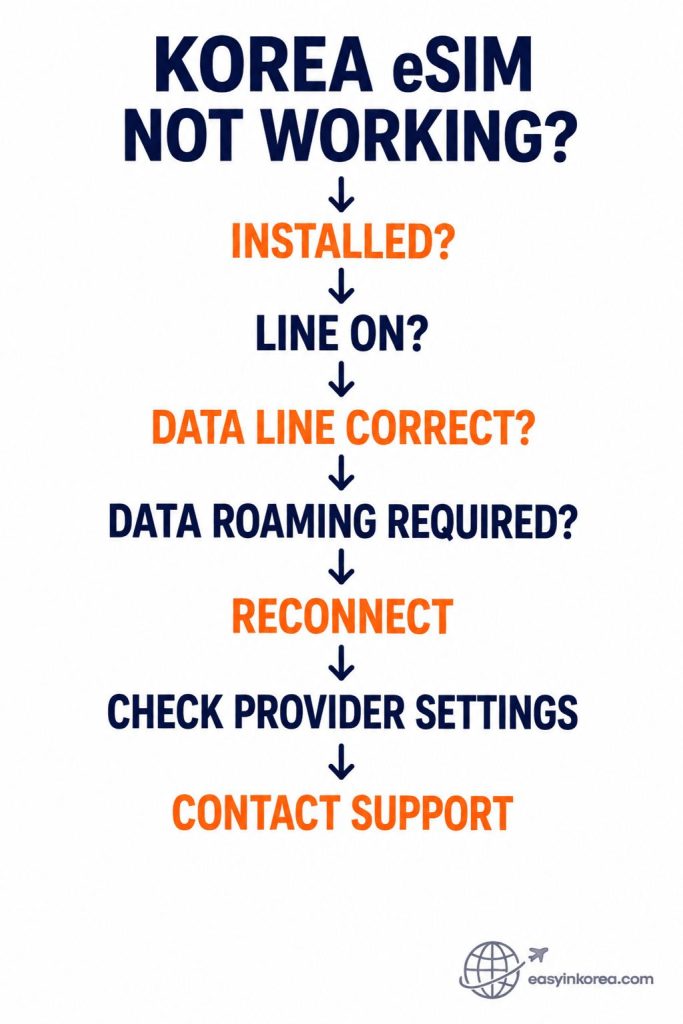
If your Korea eSIM is not working, use this sequence as a final review of the main troubleshooting steps.
Start at the top and continue only while each previous check looks correct.
1. Installed?
Confirm that the travel eSIM is installed and visible in your phone’s SIM or cellular settings.
2. Line on?
Confirm that the installed eSIM line is enabled.
3. Data line correct?
If you want the Korea eSIM to provide internet access, confirm that it is selected for mobile data.
4. Data roaming required?
Check your specific eSIM provider’s instructions. Turn on data roaming only when your plan requires it.
5. Reconnect
If the settings look correct, try one simple reconnect and check the mobile data connection again.
6. Check provider settings
Review any activation, network, or APN instructions supplied for your specific eSIM plan.
7. Contact support
If the problem continues, send your provider the phone model, eSIM status, error message, current network information, and the checks you already completed.
Do not assume that every Korea eSIM uses the same roaming, APN, or network settings. Your provider’s instructions take priority where the setup differs.
Keep the eSIM installed unless your provider specifically confirms that removing or reinstalling it is the correct next step for your plan.
If your Korea eSIM is not working, work through the checks in order rather than changing several settings together.
1. Confirm the eSIM is installed.
2. Confirm the travel line is on.
3. Select the correct mobile data line.
4. Follow your provider’s Data Roaming instructions.
5. Reconnect the phone to the network.
6. Check provider-specific settings only if needed.
7. Contact the eSIM provider if the connection still does not work.
Quick Problem and Next Check
Match what you see with the next setting or action to check.
| What you see | Check first |
|---|---|
| eSIM missing | Installation and provider instructions |
| eSIM visible, no data | Travel line and mobile data selection |
| SOS or No Service | Line, roaming requirement, and network connection |
| Signal but no internet | Data line, roaming, provider settings, and plan |
| Worked and then stopped | Remaining data, plan period, and provider status |
Check Current Official Help
Phone menus and provider settings can change. Use current official help when a setting on your phone looks different.
Provider-specific instructions take priority over a generic travel guide when they differ.
Korea eSIM Not Working FAQ
These quick answers cover the most common questions after arriving in Korea.
Why is my Korea eSIM installed but not working?
Check whether the eSIM line is turned on and selected for mobile data. Then check the roaming and network instructions supplied by your provider.
Should Data Roaming be on for a Korea eSIM?
It depends on the eSIM provider. Some travel eSIMs require Data Roaming to connect through a partner network in Korea. Follow the instructions for the eSIM you purchased.
Why do I have signal but no internet?
Check which SIM is selected for mobile data, your provider’s roaming requirement, any provider-specific settings, and whether the plan still has usable data.
Should I delete and reinstall the eSIM?
Not as a first step. Check the provider’s instructions before deleting the eSIM because reinstallation and QR-code reuse rules can differ.
What should I do if it still shows SOS or No Service?
Confirm that the travel line is active, follow the provider’s network instructions, reconnect the phone, and contact the eSIM provider if the line still cannot register on a network.
Official Device Help
Official Device Help
Phone menus and eSIM settings can differ by device and software version. Use the official support guide for your phone when you need to confirm where a setting appears.
iPhone
Apple Support — If you can’t set up an eSIM on your iPhone
Samsung Galaxy
Samsung Support — Galaxy eSIM Help
Google Pixel
Google Pixel Help — Set Up a New eSIM
Related Guides
Once your phone is connected, continue with the guide that matches your next practical step in Korea.